AI video tools
Browse AI video creation options.

Loading history…
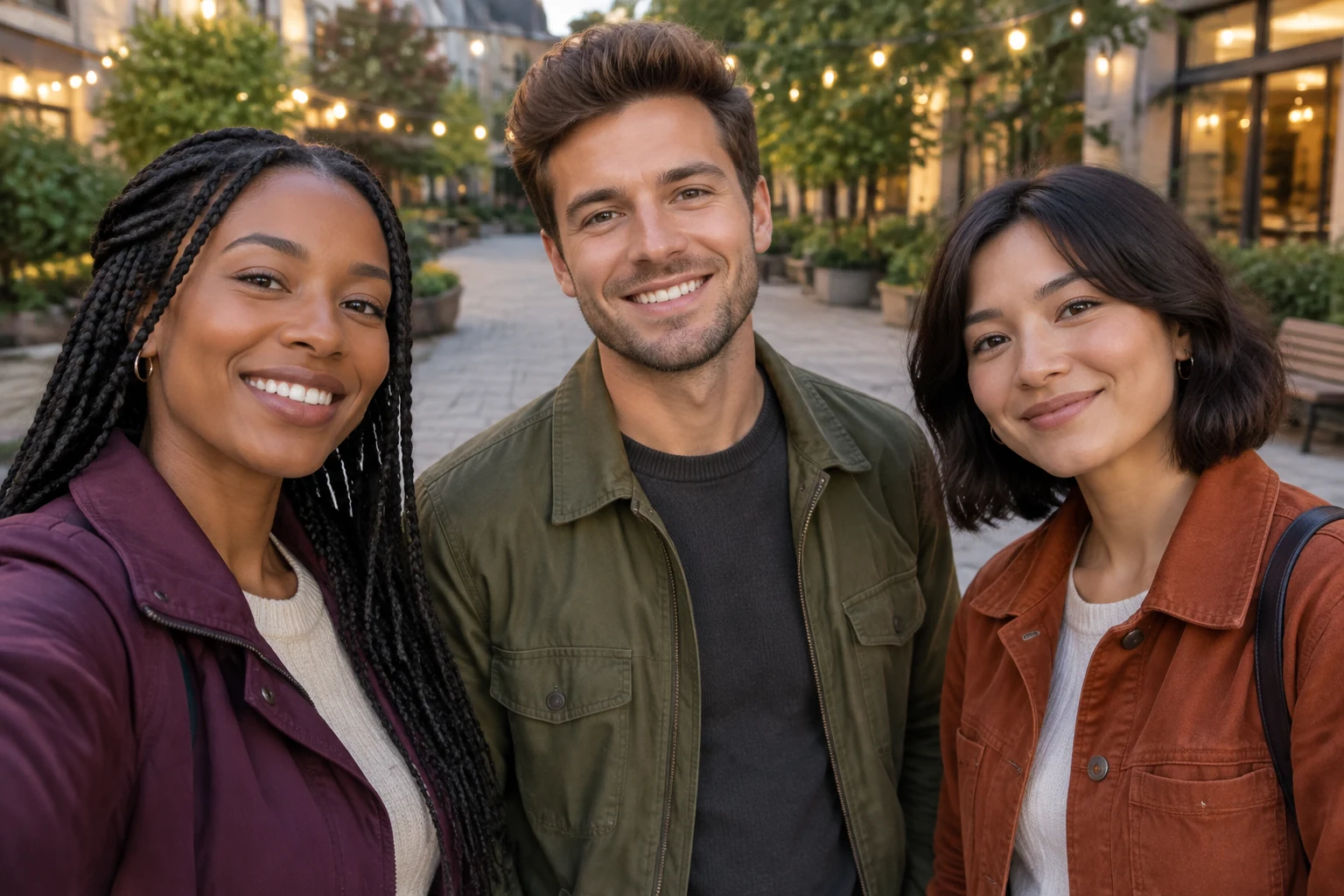
The Gangnam Style AI Video Generator can help turn a three-friend street selfie idea into a short, playful clip. Plan a clear opening with all three friends together, a few small expressive movements, a brief emphasis on one friend, and a shared ending. Start with a fictional trio in Generate mode, or use Edit mode with one group photo. Before you begin, choose a simple scene and decide how you want the group framed.
Select Generate to describe a fictional group of three and the street scene you have in mind. To animate real friends, select Edit and use one photo containing all three people. Choose a clear image where each face is visible and the group’s left-center-right arrangement is easy to see.
Keep the setting simple and describe where the three friends stand. Start with everyone in frame, then ask for a brief emphasis on one friend without losing sight of the other two. For Edit, keep the original photo’s background and the group’s existing positions.
Use a few concise movement directions: a gentle shared step, a smile, or a relaxed wave. Ask for a friendly group opening and a shared ending. Small expressive movements give the scene a clear progression without requiring a detailed dance sequence.
Choose a duration and aspect ratio suited to your intended use, then review the live credit quote beside Generate before starting. Check task progress in History. When the result is ready, review the whole clip, especially all three faces and the group’s ending.
For Edit, use one group photo with all three people visible. A straightforward portrait or selfie makes it easier to see each face and understand the group’s left-center-right positions. Check that the image shows the clothing and background you want to retain. Avoid cropping a person out of the frame. If you prefer not to use a photo, choose Generate and describe a fictional trio instead.
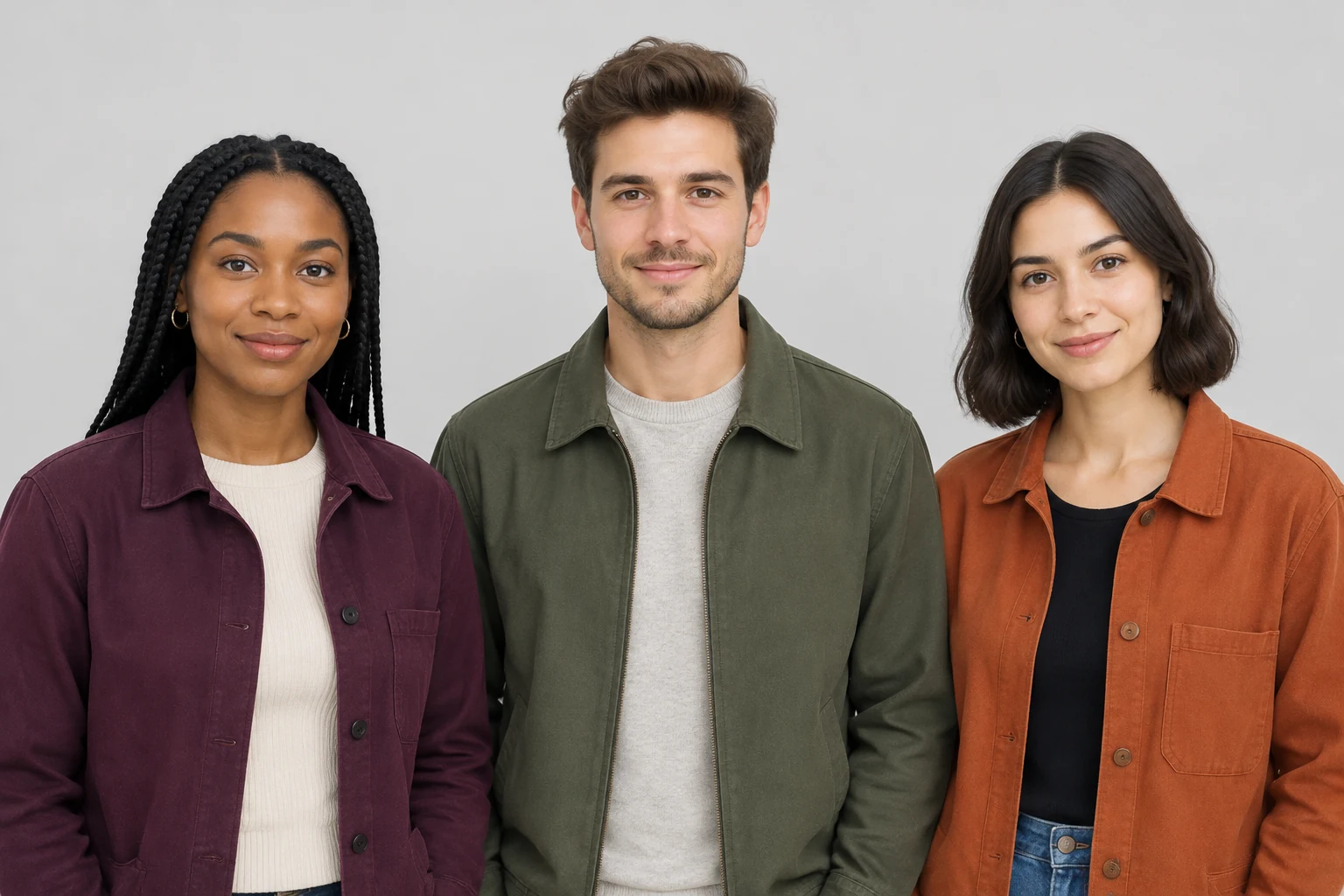
Describe the setting, light, and group composition in plain language. A pedestrian street with a readable background can help keep attention on the friends. Ask for the full trio together at the beginning, then describe one short movement and a brief emphasis on one friend. Keep the other companions in view during that moment so the clip still feels like a shared selfie.
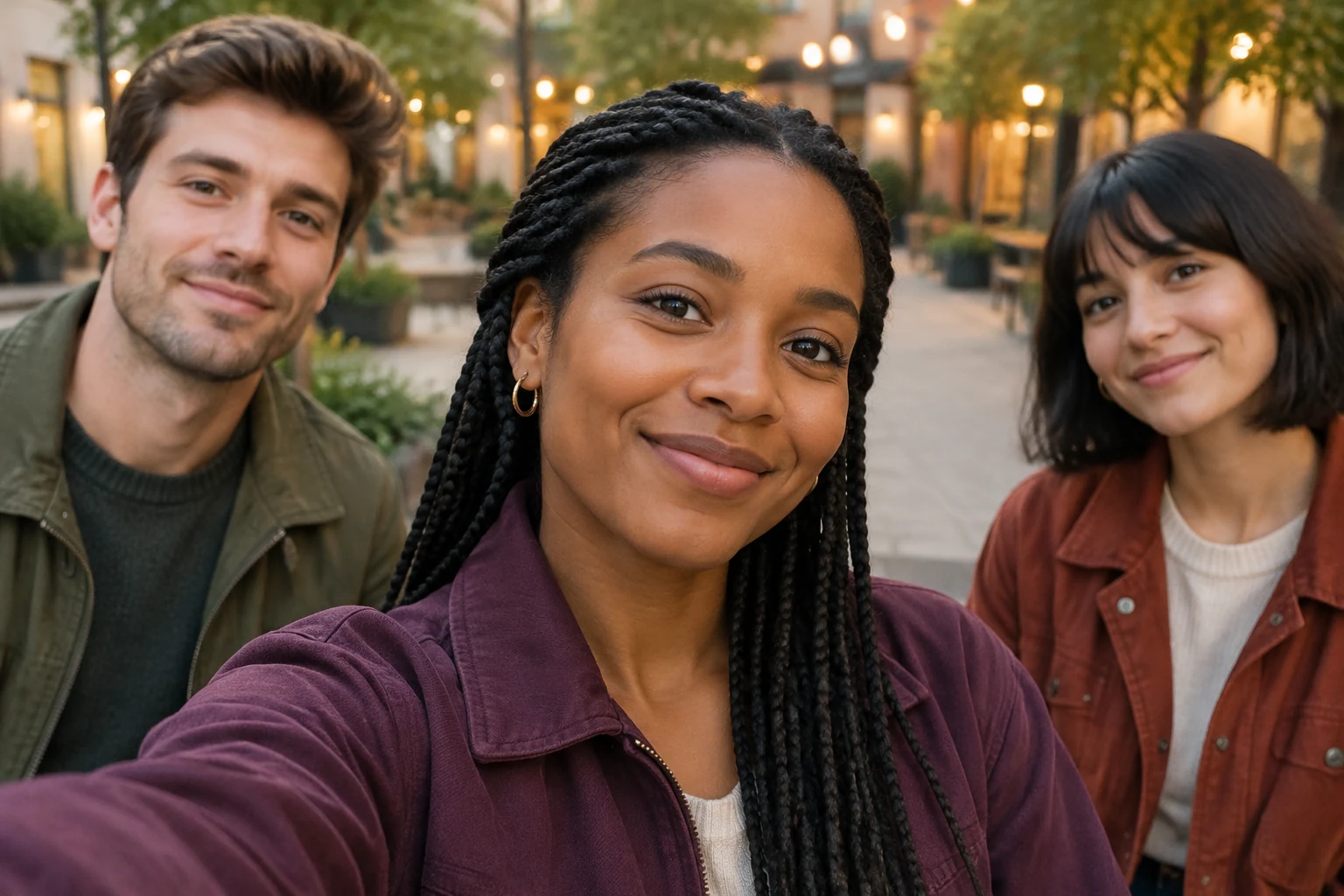
A few small gestures are enough to give the group a playful moment: a gentle step, a change in expression, or a wave. Finish with all three friends together. There is no need to specify exact choreography or assume a fixed camera template; describe the framing and movement you want in the editable prompt. Camera timing and likeness can vary, so review all three faces. Original song audio is not bundled; audio options follow the selected parameters.
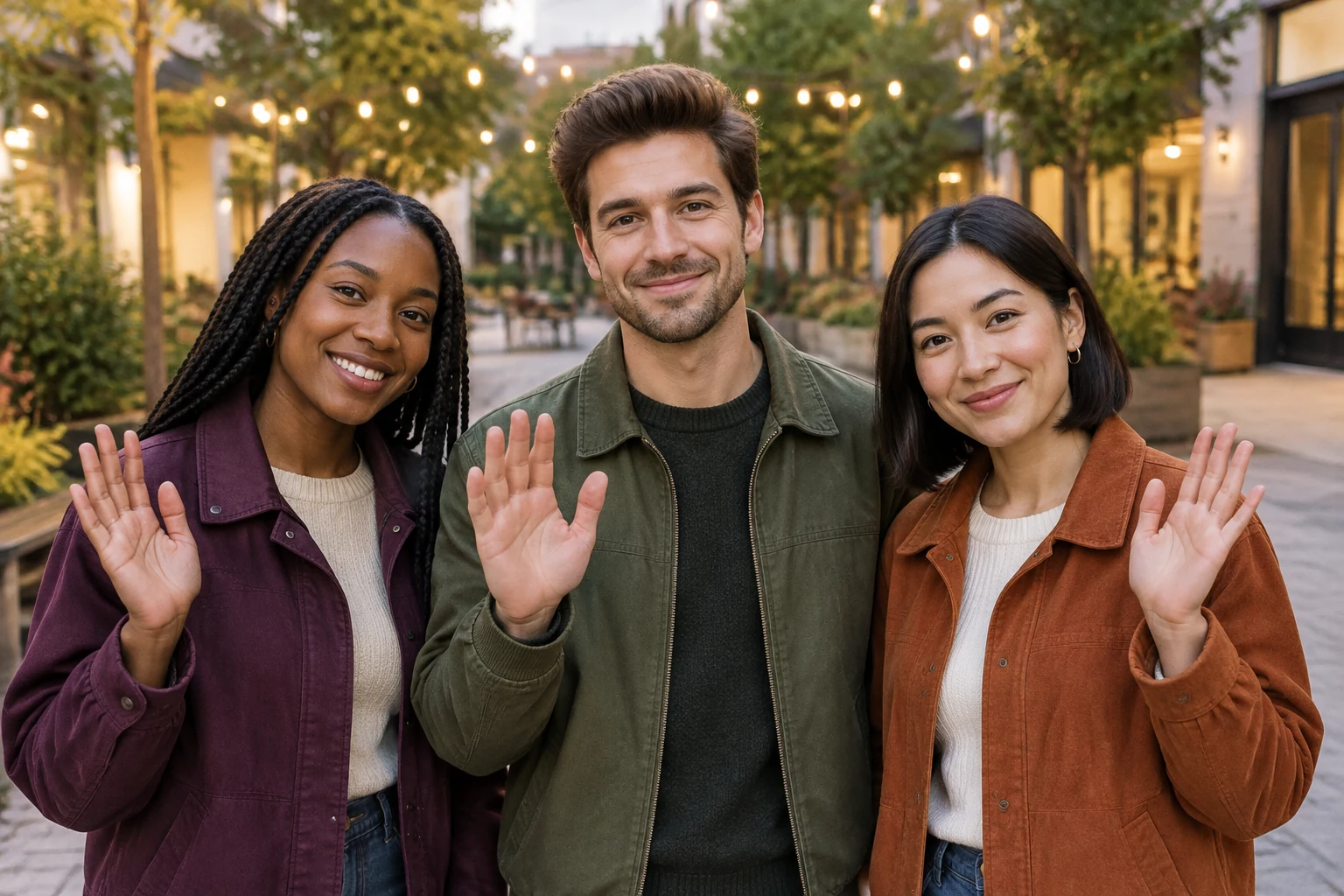
Before generating, select the available duration and aspect ratio that suit your plan. Read the live credit quote beside Generate, then start the task and check its progress in History. Afterward, watch the complete clip to assess the opening, the brief emphasis, and the shared ending. Confirm that all three people remain recognizable and that the scene suits your intended use.
Yes. Choose Generate and describe a fictional group of three, their setting, and the actions you want. Edit mode uses a group photo.
Use one photo containing the three people you want to animate. Make sure all three are visible and their positions are clear.
You can ask for a brief emphasis on one friend while keeping the other two visible. Camera timing can vary, so review the result to see how the framing turned out.
Likeness can vary. For Edit, use a clear group photo and review all three faces in the finished clip.
The live credit quote beside Generate shows the cost for the selected parameters before you start.
The original song is not bundled. Audio options follow the parameters you select.
southparkcharacter.com · Updated