What is AI Sculpture Filter?
Turn a portrait into a sculpture-inspired image by describing the material, surface finish and lighting. Try it for author portrait for an essay, with your own setting and a clear visual intention.

an original character idea
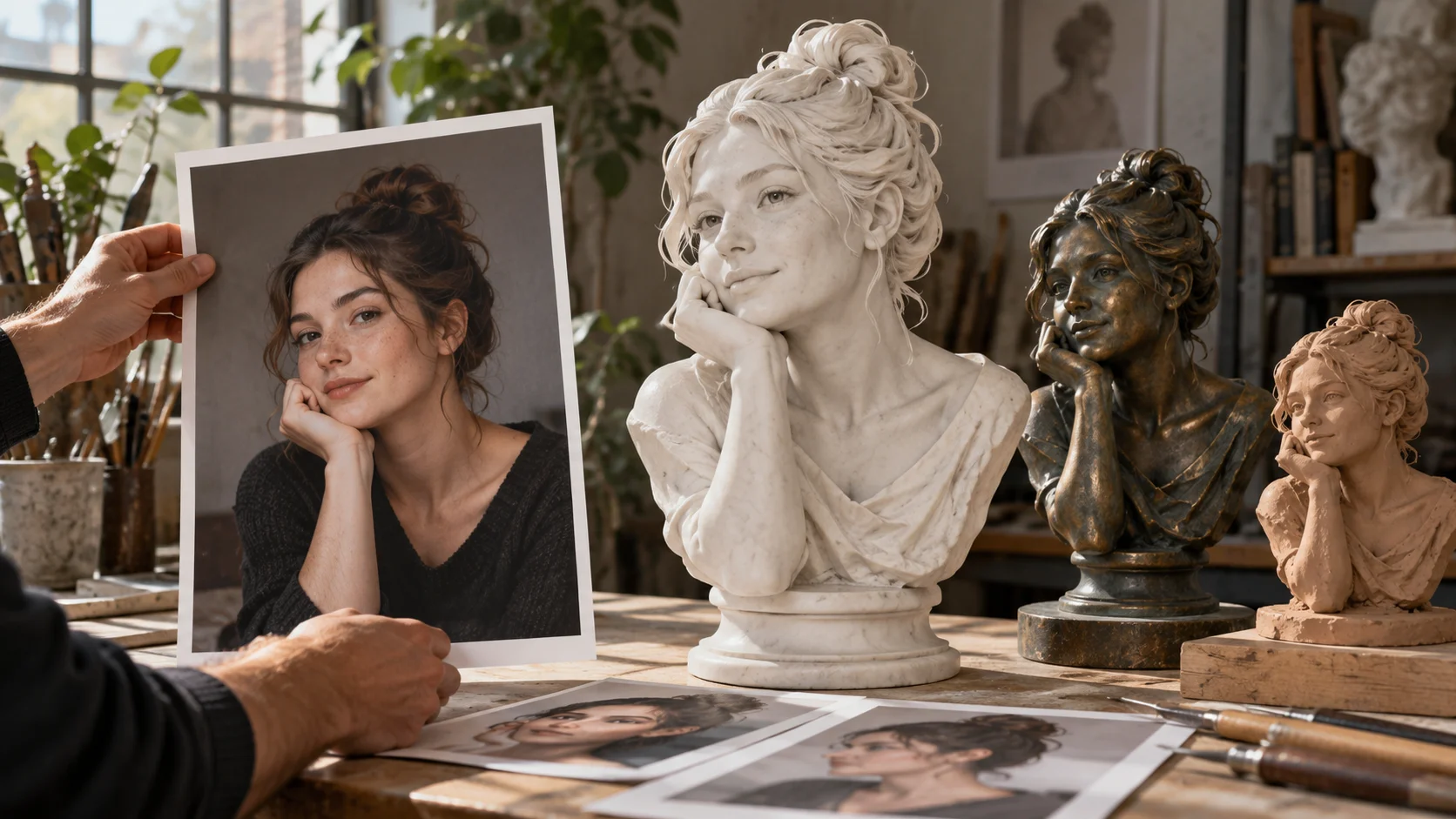
Turn a portrait into a sculpture-inspired image by describing the material, surface finish and lighting. Try it for author portrait for an essay, with your own setting and a clear visual intention.
Choose Text to Image or Image to Image, prepare the matching inputs and describe one useful direction. Check the settings and quote, then submit and review the result in History.
Check your current account credits and the selected model’s access conditions. When the available balance covers the quoted job, you can generate without buying more credits.
Use one sharp portrait with clear facial contours and enough space around the head and shoulders. Choose an angle you want to keep.
Read the live credit quote for the selected model and settings before submitting your sculpture portrait. Preparing inputs or editing a description does not start a generation.
Follow the submitted job’s estimate and progress. The model, settings and queue affect waiting; History keeps the completed image available for review and download.
Turn a portrait into a sculpture-inspired image by describing the material, surface finish and lighting. A head tilt, shoulder shape or distinctive profile can guide the composition. On southpark character, approach it as an original character idea: a bold silhouette and an expressive finish. Give the character one readable visual hook that still works when the image is small.
Create a sculpture filter portrait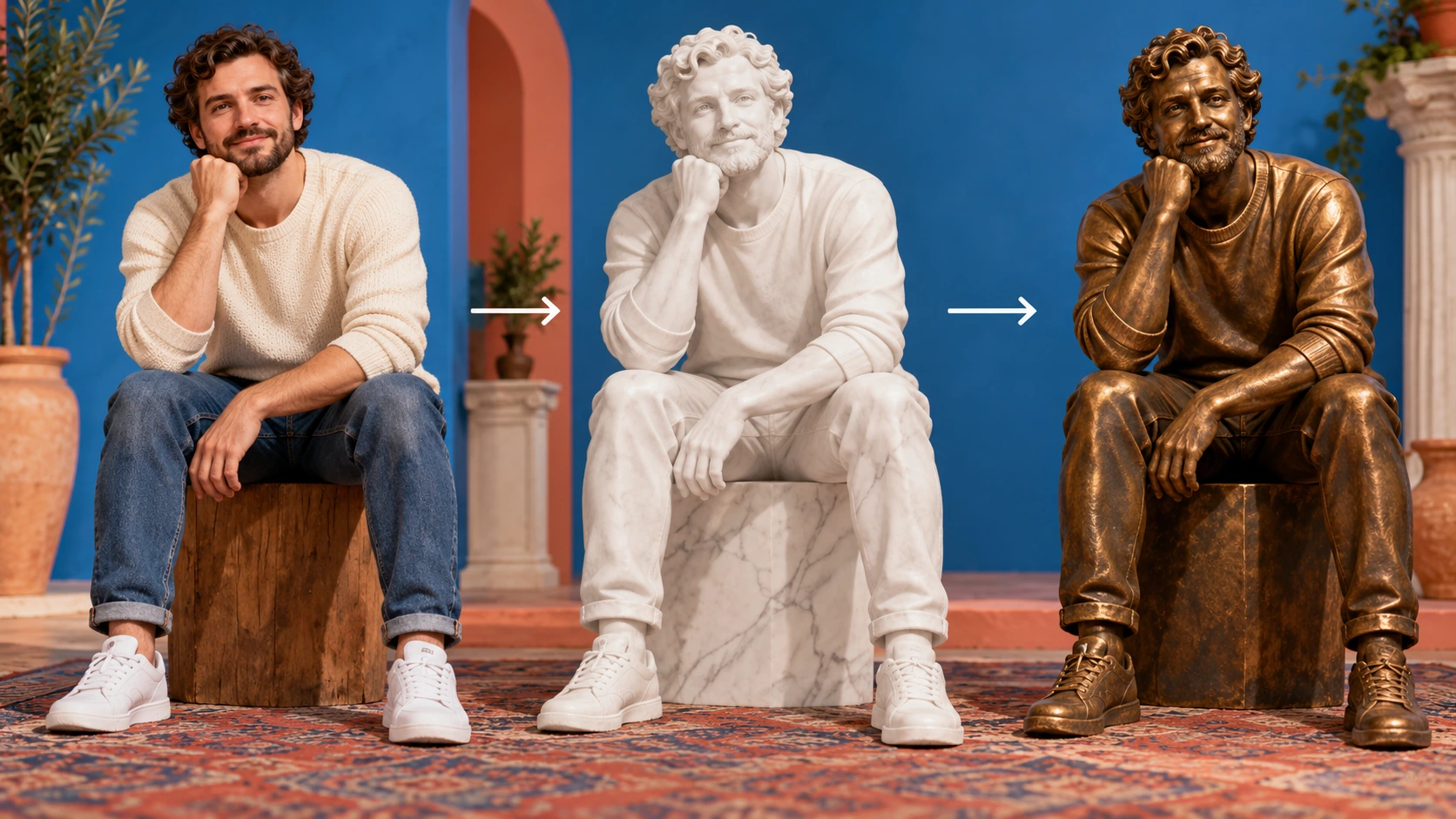
Use one sharp portrait with an unobscured face, a clear shoulder line and gentle even light. Start with a photo where the eyes are visible and the head is not turned too far, since both help the sculpture treatment read clearly.
Plan the sculpture portrait as a simple visual sequence, then put the important decisions into your description. Write the material, finish and background in the prompt before generating, and keep the wording consistent across a series.
The generator displays a live credit quote before you commit. After generation, compare the result with the source for pose, shape and composition. Keep useful attempts in History so you can return to them. Review at full size for odd features or merging before you share anything publicly.
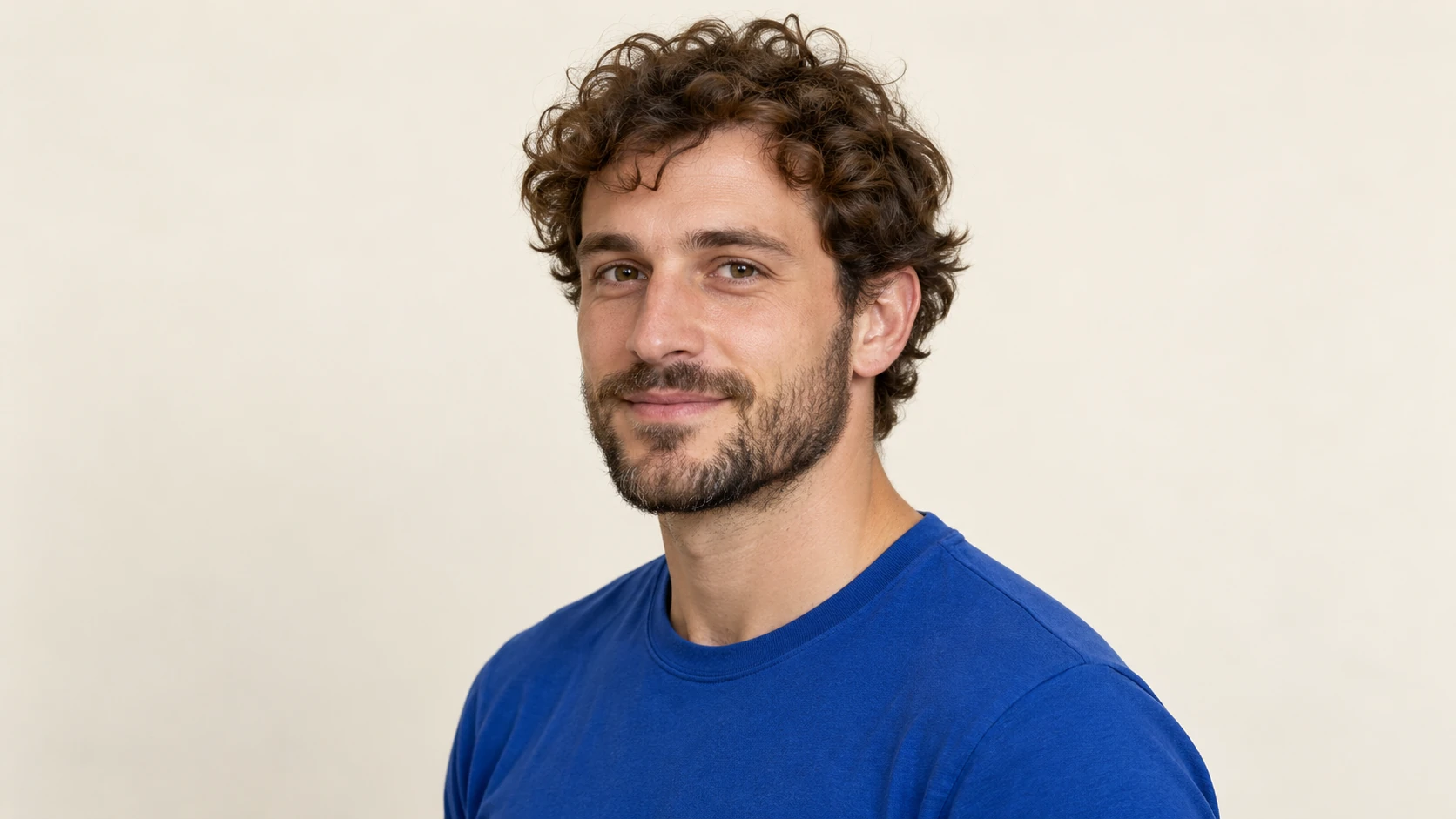
Pick a portrait with a clear face, even light and an uncluttered background. Note how the subject is posed, since the result should retain the same stance, head angle and framing. Crop consistently if you plan a series. Avoid heavy filters or motion blur, because those details compete with the sculpture treatment.
Decide between white marble, patinated bronze, clay and carved stone before writing the prompt. Each changes how readers perceive the portrait, from clean editorial to archival. Use the editable prompt to describe material, surface finish, lighting and background, and use the model controls for the direction you need.
You can describe white marble, patinated bronze, clay or carved stone in the prompt. Each material suggests different surface behavior, from pale and smooth to dark with green patina or visibly worked. Say which one you want, and add notes about lighting and backdrop so the result fits your intended context.
Generation jobs and History let you compare attempts side by side. That supports review decisions: which version reads best at thumbnail size, which looks calm next to body text, and which suits a profile image. Keep the version you approve and note the prompt details that produced it.
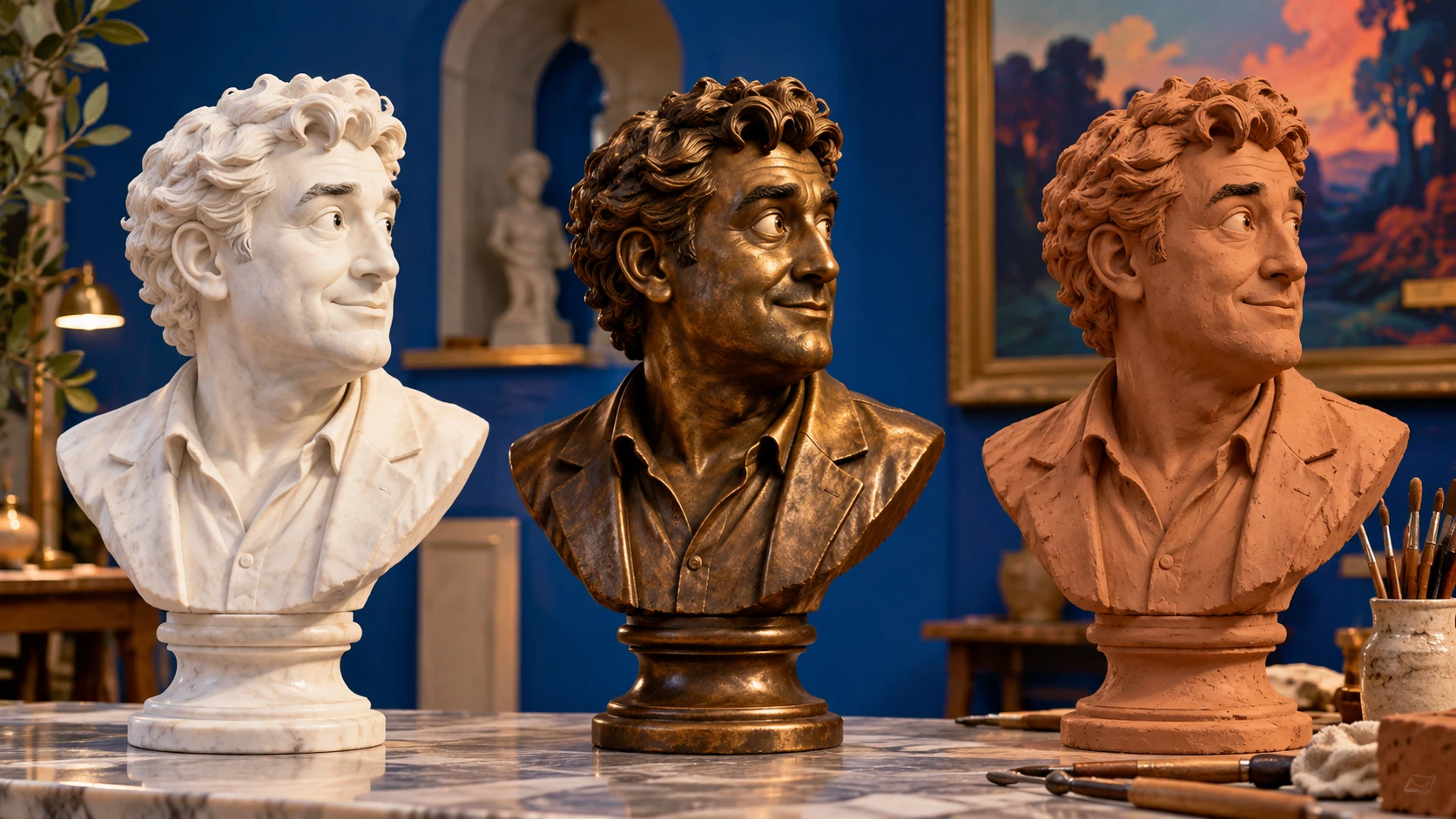
An essay about craft or memory can use a marble portrait that softens the author photo while keeping the pose. Pair it with a caption explaining that the image is an illustration, so readers understand the treatment.
A ceramicist or sculptor can post a clay-style portrait to announce a show. The material nod connects the image to the work, and the retained composition keeps the post recognizable as the same person.
Creators building a profile can produce a consistent set, such as bronze portraits for each team member. Check framing and lighting across versions before publishing so the series looks intentional rather than mixed.
It produces a portrait image that looks like a sculpture made from marble, bronze, clay or carved stone. It is not a 3D mesh, printable model or physical object. The result is a flat image for editorial or social use.
Use a sharp, evenly lit portrait with a clear face and simple background. Avoid extreme crops or covered features. Before uploading, confirm you have permission to use the photo and that the pose you want retained is visible.
Yes. Describe the material and finish in the editable prompt, such as white marble with soft light or patinated bronze with a dark background. The model controls help steer the overall direction, and the prompt carries the material detail.
The intent is to retain pose, shape and composition from the uploaded photo. Check the result after generation, because the material treatment can shift small details. Review the silhouette first, then the face and framing, before accepting a version.
Choose Text to Image for a new sculpture portrait made entirely from your description; it uses no uploaded reference. Choose Image to Image when one photo should guide the person, subject or composition. Select the mode first so the visible inputs match your intention.
You can prepare the sculpture portrait before submitting. To generate, check your signed-in account’s current credits and the selected model’s access conditions. If the available balance covers the displayed quote, you can proceed without buying more; no fixed free quota is promised.
Your sculpture portrait has a live credit quote based on the model and settings you choose. Check it before submitting. Editing the description or reviewing an idea does not start a job; submitting another generation creates a separately quoted attempt.
Use the estimate and progress shown for the submitted sculpture portrait job. Model choice, settings and queue conditions affect waiting. Check History for the completed image, and keep the existing task in progress instead of resubmitting the same request while you wait.
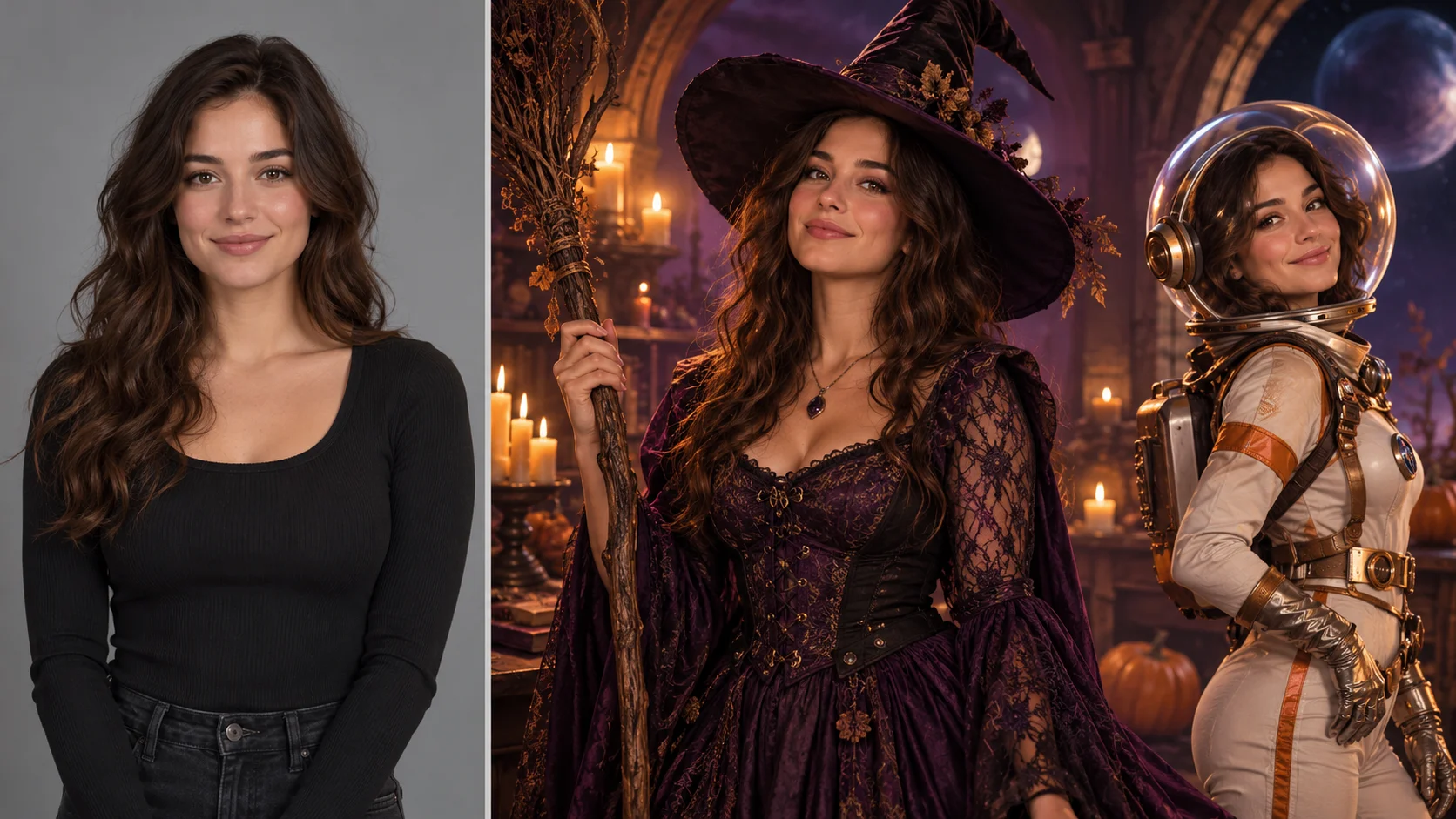
Explore AI Halloween Costume for a different visual direction. This guide explains its input, practical steps and the details to review.
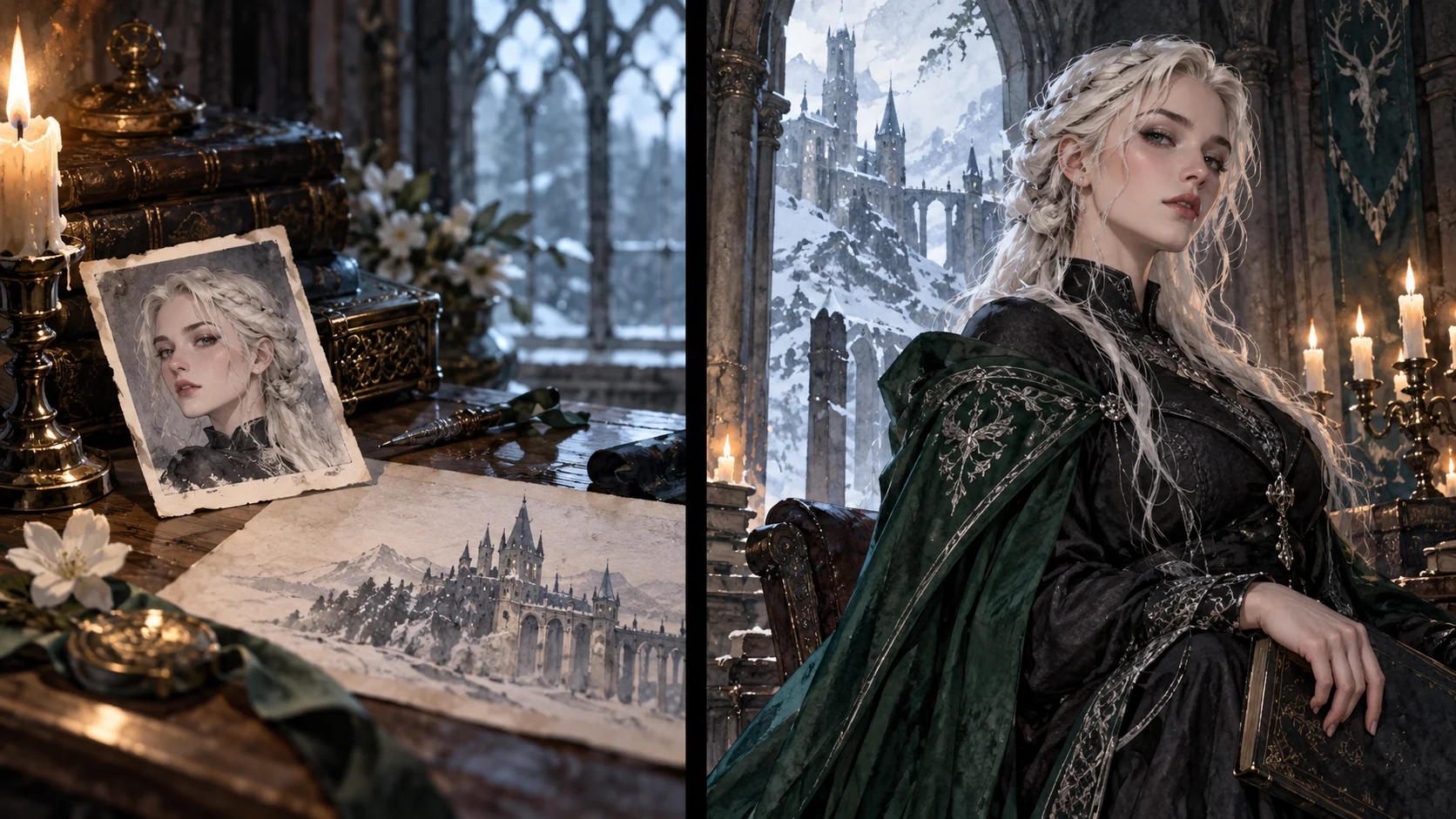
Explore Female Malfoy AI Generator for a different visual direction. This guide explains its input, practical steps and the details to review.
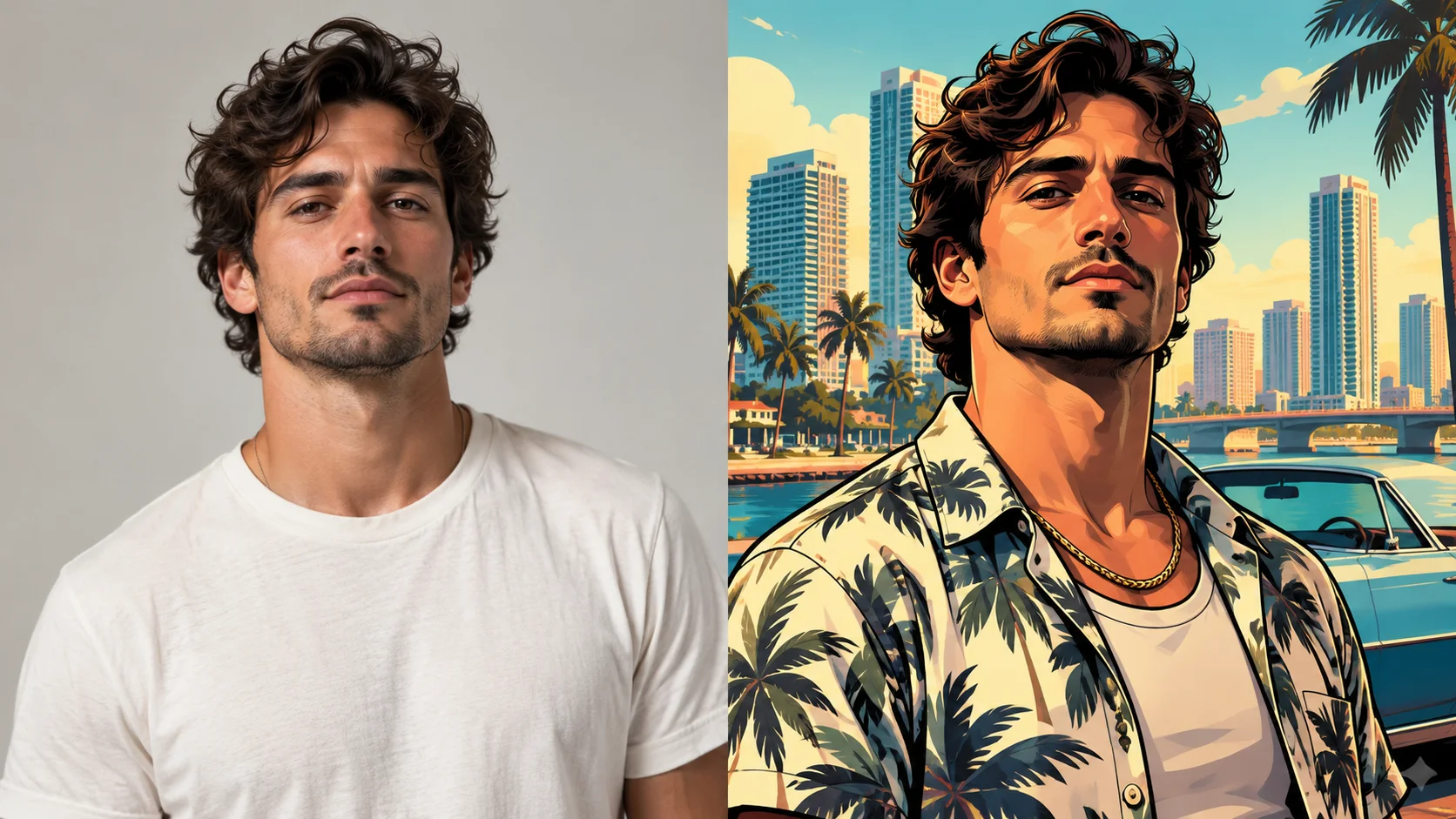
Explore GTA Style AI Photo Generator for a different visual direction. This guide explains its input, practical steps and the details to review.
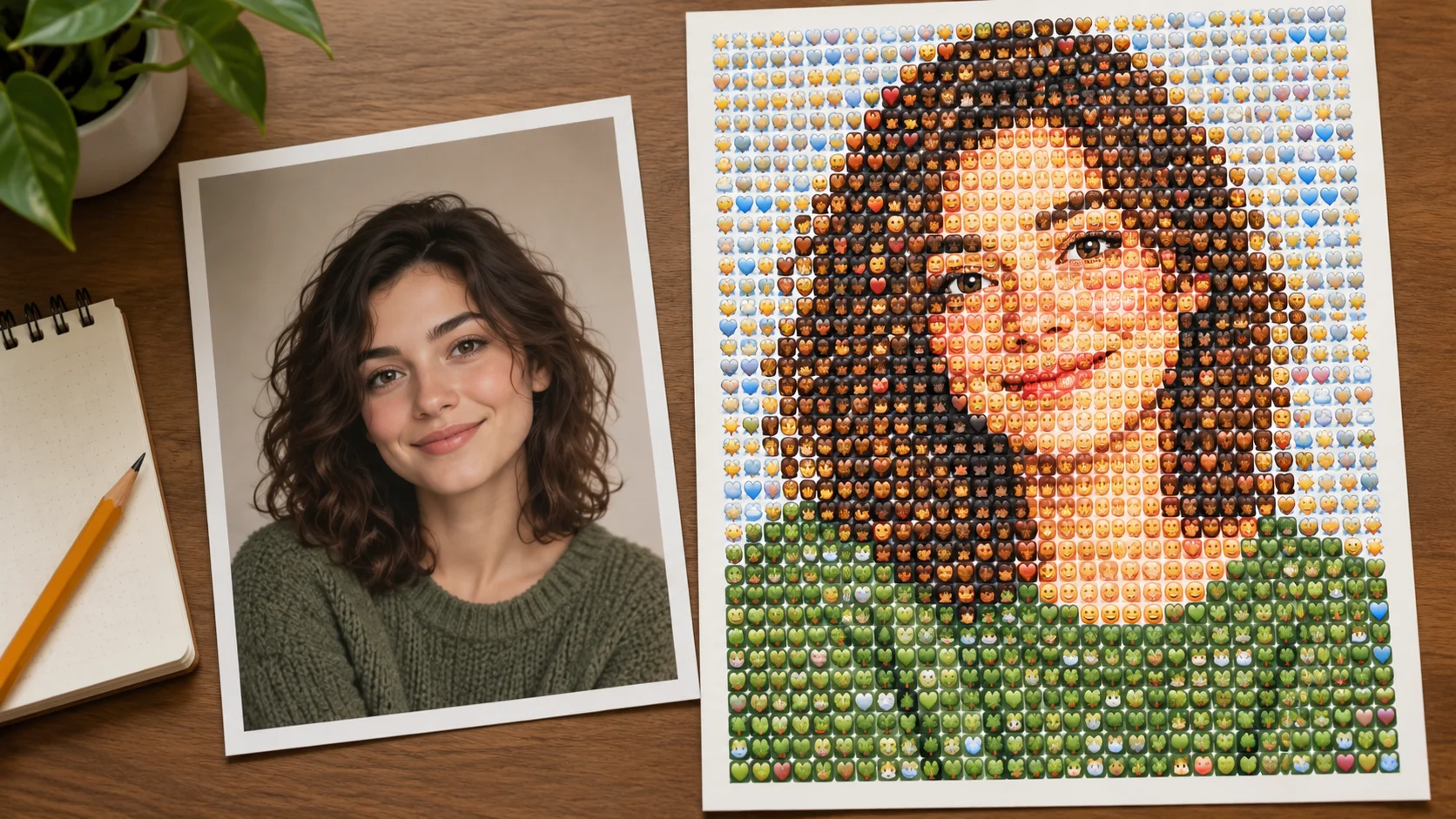
Explore Photo From Emoji Generator for a different visual direction. This guide explains its input, practical steps and the details to review.
Give the character one readable visual hook that still works when the image is small. Prepare the sculpture portrait, read the current quote and submit when the direction is clear.
Create a sculpture filter portraitsouthparkcharacter.com · Updated