1. Choose a mode
Select edit mode to work from an uploaded image, or text mode to create a new autumn scene without an upload.

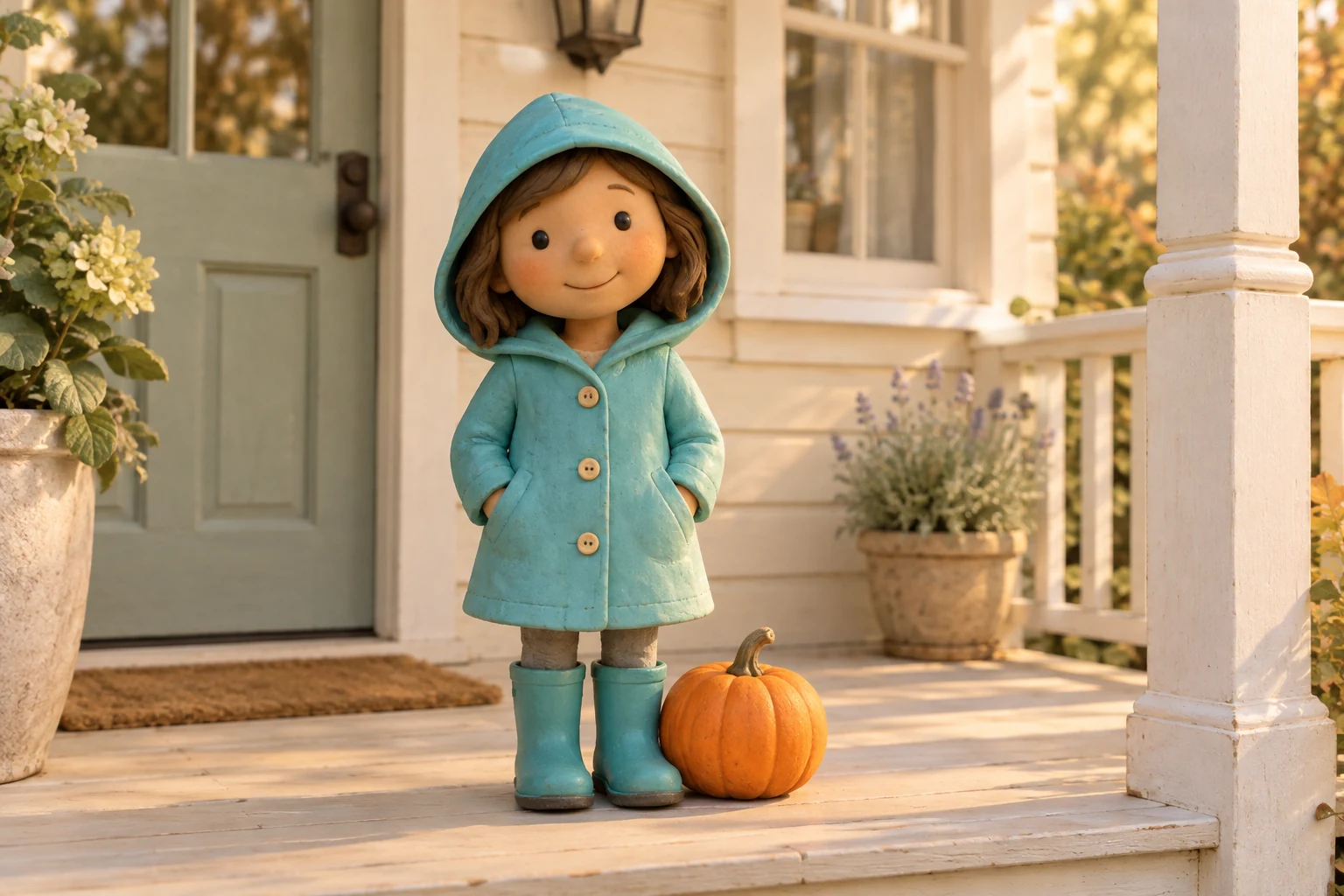
Give a photo a playful autumn touch by adding a pumpkin beside your character, on a porch, or among cozy seasonal details. Upload one image in edit mode and describe the change you want; the original character silhouette is a useful guide, not a guarantee of preservation. Prefer a fresh scene? Switch to text mode to create one without uploading an image. Adjust the prompt and choose an available model before generating.
Select edit mode to work from an uploaded image, or text mode to create a new autumn scene without an upload.
Use the suggested prompt or edit it to describe the pumpkin's placement, the scene, and the cartoon style you want.
Choose an available model, review the displayed credit quote, and check your account credit balance before generating. See Pricing for current eligibility.
Start generation and look in History for the result when it's ready. Open it to review and download the image.
Edit mode requires one uploaded image, giving the prompt a visual reference for your autumn addition.
Text mode creates a new scene from your prompt, so you can start with a character, setting, and pumpkin in mind.
Edit the prompt and select an available model to shape your request before you begin.
Use History to check on your generation and return to the image for review and download.
Only for edit mode, which requires one uploaded image. Text mode creates a new scene without an upload.
Edit mode uses your uploaded image as a reference for a requested change. Text mode generates a new scene from your prompt without an image.
Exact preservation isn't guaranteed. Describe the silhouette and details you want retained, and avoid asking for a pumpkin-head replacement if you want the pumpkin beside the character.
Review the displayed credit quote and your account credit balance before generating. Eligibility can vary; check Pricing for current information rather than assuming a free allowance.
Wait times can vary. Check History for the result instead of relying on a fixed completion time.
Open the finished image from History and use the available download option.
southparkcharacter.com · Updated