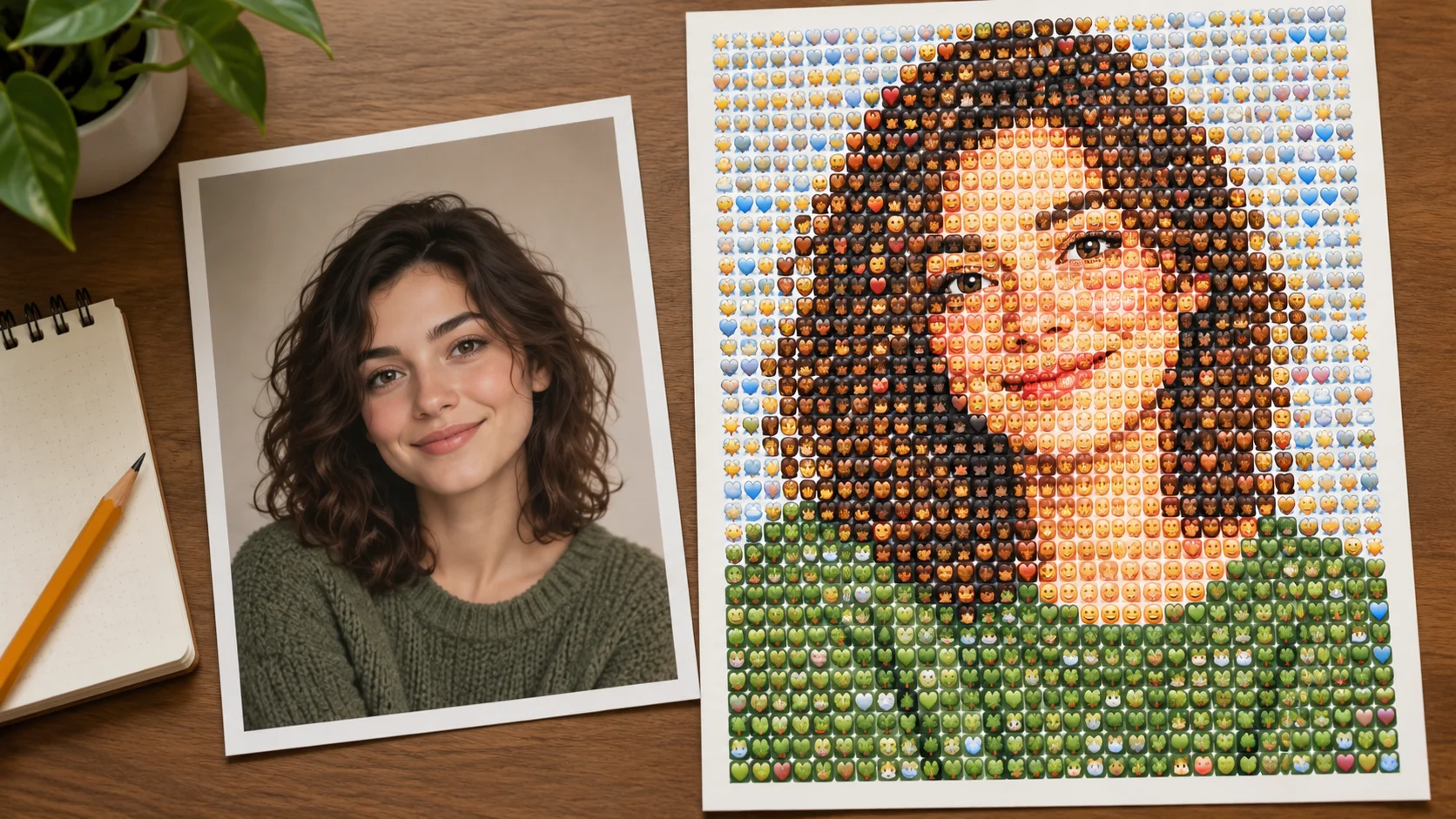
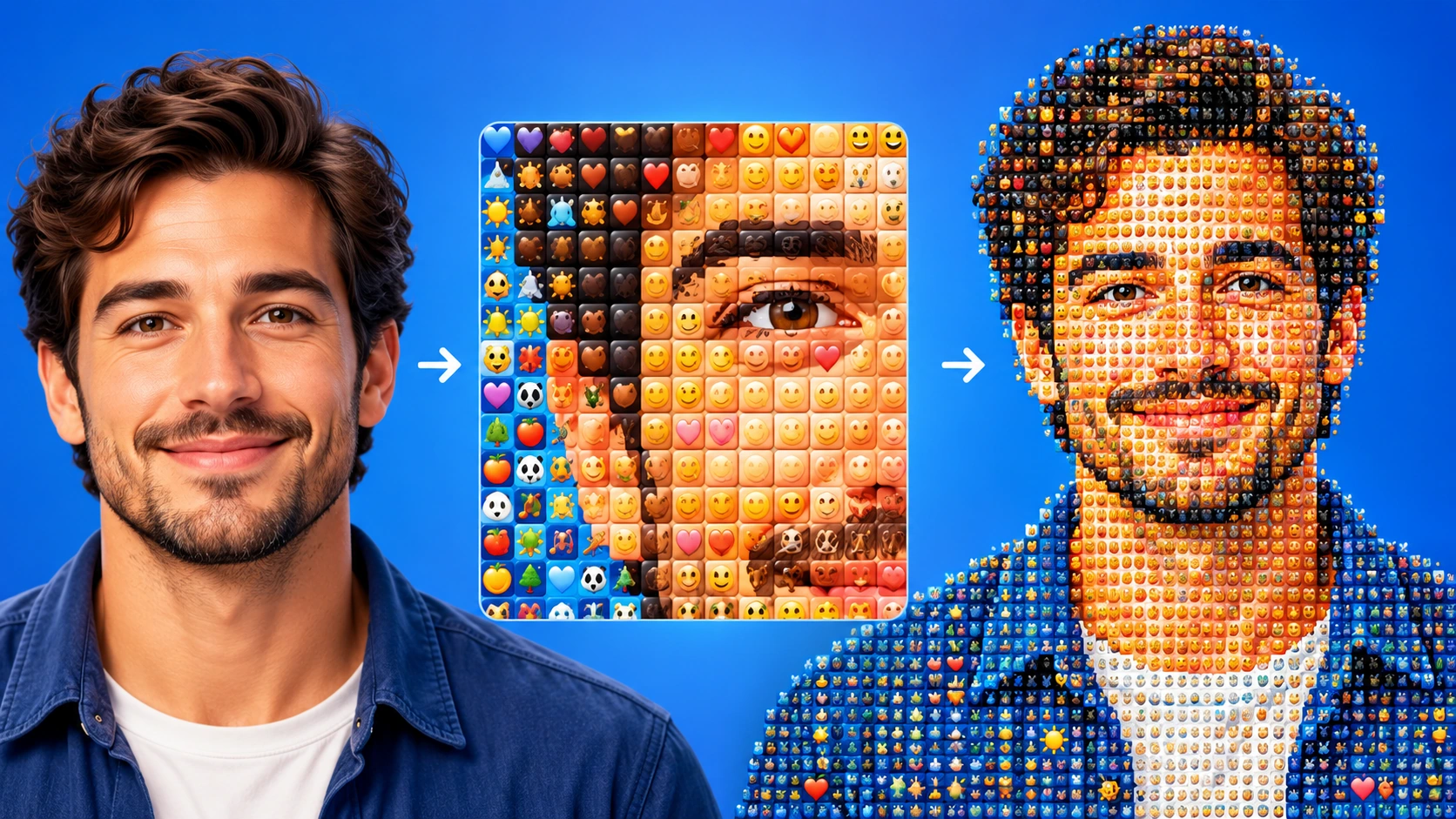
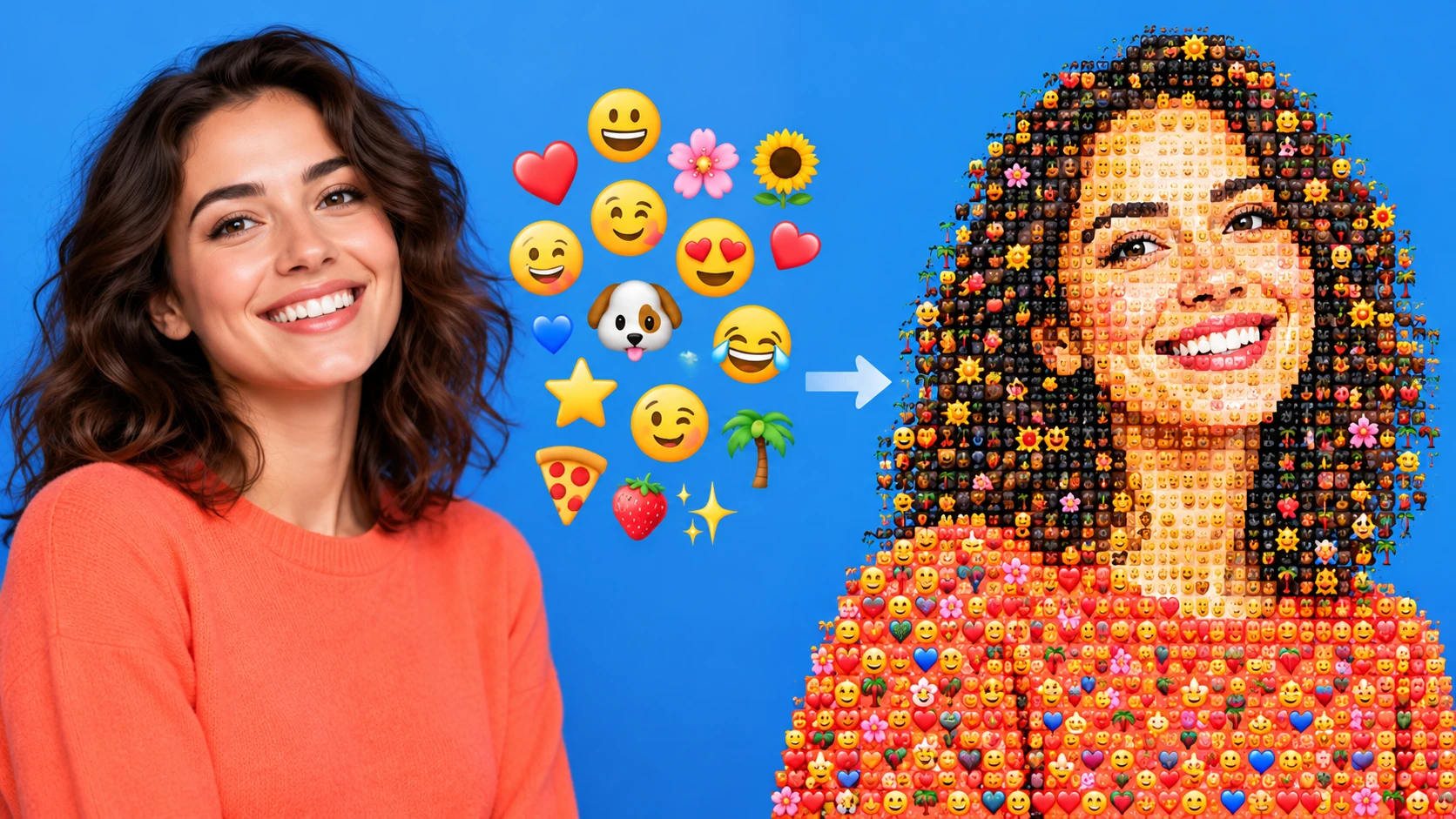
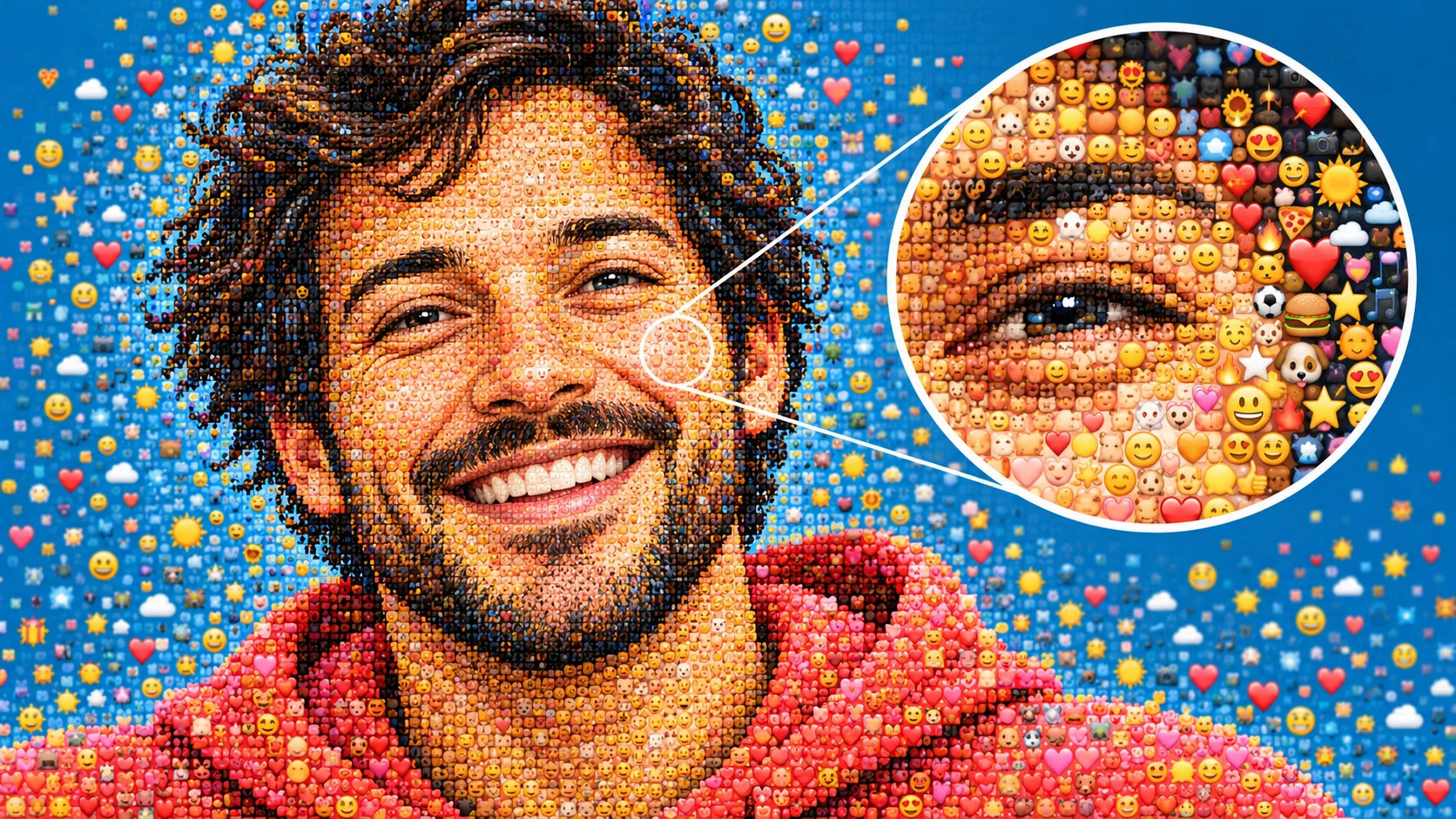
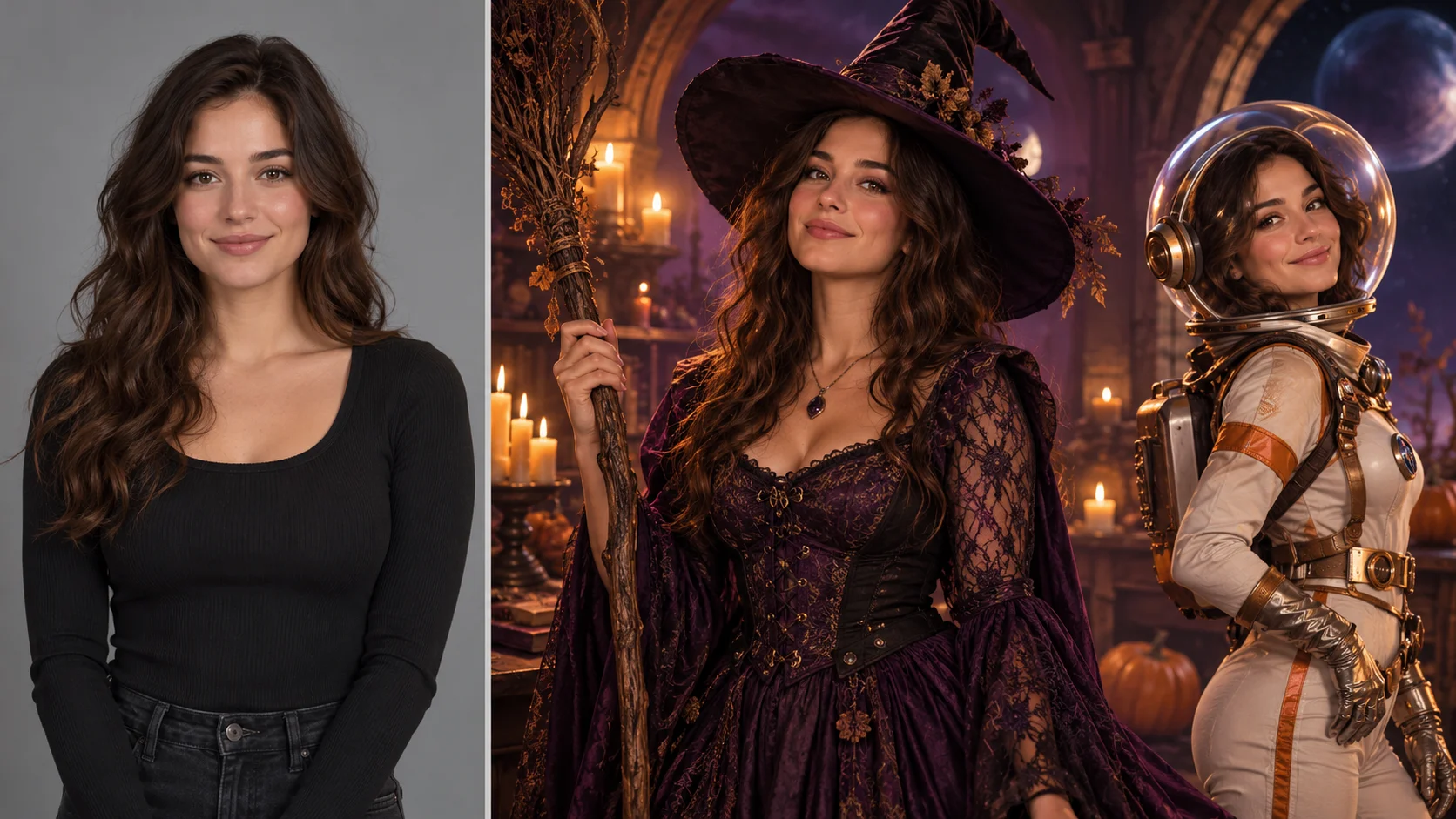
The large portrait should read from a distance while the tiny tiles reward a closer look.
History
Your questions, answered
What is Photo From Emoji Generator?
Turn a photograph into an emoji mosaic: many small expressive tiles recreate the broad colors and silhouette of the picture. Try it for profile art with a readable silhouette, with your own setting and a clear visual intention.
How do I start?
Choose Text to Image or Image to Image, prepare the matching inputs and describe one useful direction. Check the settings and quote, then submit and review the result in History.
Can I try it for free?
Check your current account credits and the selected model’s access conditions. When the available balance covers the quoted job, you can generate without buying more credits.
What do I upload?
In Image to Image, upload one simple portrait with a clearly separated face and background. Bold shapes and even light are useful starting points.
How much does it cost?
Read the live credit quote for the selected model and settings before submitting your emoji mosaic. Preparing inputs or editing a description does not start a generation.
When is the result ready?
Follow the submitted job’s estimate and progress. The model, settings and queue affect waiting; History keeps the completed image available for review and download.
Turn a photograph into an emoji mosaic: many small expressive tiles recreate the broad colors and silhouette of the picture. Choose a clear portrait, describe the mosaic treatment and review the face at the intended viewing size. On southpark character, approach it as an original character idea: a bold silhouette and an expressive finish. Give the character one readable visual hook that still works when the image is small.
Plan the emoji mosaic as a simple visual sequence, then put the important decisions into your description.
1. Choose and prepare the photograph
Prepare a clear subject and a focused direction before submitting a generation. Test with a small, simple subject first so you can judge tile behavior before committing a detailed photo.
2. Direct the prompt and model controls
Use the editable prompt to describe the subject, dominant colors, and the level of tile detail you want. Adjust the available model controls, then read the displayed live credit quote before starting. Keep the prompt concrete: describe the photo before describing the style. Save a short note of what you changed so the History comparison makes sense.
3. Generate, then review in History
Confirm the displayed quote, run the generation job, and open the result in History. Check tile precision against your original: does the silhouette hold, do the colors read correctly, and does the subject remain recognizable? Compare variants side by side. Keep notes on prompt changes, because small wording shifts can change how the emoji grid resolves.
Practical preparation and review
Prepare a clear subject and a focused direction before submitting a generation.
Pick a photo with a clear subject, readable silhouette, and distinct color regions. Tight crops usually read better than wide scenes. Save a copy at a resolution you are comfortable uploading. Before generating, note what matters most: face shape, background color, or an accessory. That choice shapes your prompt and your later review.
Test with a small, simple subject first so you can judge tile behavior before committing a detailed photo.
Read the displayed live credit quote before each job and space your variations deliberately.
Review the mosaic at the final sharing size; a result that works large may lose its subject in a thumbnail.
Choose the mode before preparing the emoji mosaic; keep uploaded media in the photo mode and describe a new subject directly in the text mode.
What the output actually shows
Tiles build up color and silhouette
The mosaic is constructed from many small emoji tiles. Each tile contributes a patch of color, and together they approximate the broad tones, facial silhouette, and subject outline of your uploaded photograph. Expect a stylized reconstruction rather than a precise portrait. Detail level shifts with input clarity and the direction you give.
Prompt control over interpretation
An editable prompt lets you decide what the mosaic emphasizes. You can describe the subject, the palette, or the density of detail you want. This is creative direction, not face recognition. The generator does not extract an unknown real person from an emoji; it reconstructs visual information you supply, and your wording guides that reconstruction.
Jobs and History for editorial review
Generation jobs run from your account, and completed work appears in History. That record supports editorial review: you can compare earlier attempts, revisit a prompt, and decide which version is worth sharing. The displayed live credit quote before each run helps you plan how many variations you will realistically test.
Editorial scenarios for creators
Use a bold silhouette and an expressive finish to shape an emoji mosaic that fits your idea.
Profile art with a readable silhouette
Use a well-lit headshot and prompt for a bold emoji mosaic. Review at small display size, since profile images are seen tiny. Share the version whose silhouette survives shrinking.
Cover image for a story series
Feed a strong landscape photo and ask for broad color blocks in the emoji grid. Review how the palette reads at banner width, then use the result as a consistent cover across posts.
A comparison post about process
Generate two or three variants with different prompts. Review them in History, then publish the sequence alongside your notes. The editorial value is the decision-making, not a single polished image.
Questions about the emoji mosaic tool
What does the Photo From Emoji Generator produce?
It produces an emoji mosaic image based on your uploaded photograph. Many small emoji tiles approximate broad colors, the facial silhouette, and the subject of the input. Tile precision and detail vary between runs, so expect a stylized reconstruction, not an exact copy.
Which photos work best as input?
Photos with a clear subject, simple composition, and distinct color regions tend to read well as mosaics. Busy backgrounds and crowded groups can blur together in the tile grid. A tighter crop and recognizable silhouette give the generator more to work with.
How much control do I have over the result?
You can edit the prompt and adjust the available model controls before running a job. Describing the subject, palette, and desired level of detail helps. The tool follows your direction, but it does not extract an unknown real face from emoji or recover details absent from the input.
Will the mosaic look exactly like my photo?
No. The result is an approximation built from emoji tiles. Broad color, silhouette, and subject shape are reconstructed, while fine features may simplify or shift. Review each result in History and compare variants before deciding what represents your subject well enough to share.
Should I choose Text to Image or Image to Image?
Choose Text to Image for a new emoji mosaic made entirely from your description; it uses no uploaded reference. Choose Image to Image when one photo should guide the person, subject or composition. Select the mode first so the visible inputs match your intention.
Can I use my available credits without buying a plan?
You can prepare the emoji mosaic before submitting. To generate, check your signed-in account’s current credits and the selected model’s access conditions. If the available balance covers the displayed quote, you can proceed without buying more; no fixed free quota is promised.
What does an emoji mosaic generation cost?
Your emoji mosaic has a live credit quote based on the model and settings you choose. Check it before submitting. Editing the description or reviewing an idea does not start a job; submitting another generation creates a separately quoted attempt.
How long should I wait, and where is the result?
Use the estimate and progress shown for the submitted emoji mosaic job. Model choice, settings and queue conditions affect waiting. Check History for the completed image, and keep the existing task in progress instead of resubmitting the same request while you wait.
Give the character one readable visual hook that still works when the image is small. Prepare the emoji mosaic, read the current quote and submit when the direction is clear.