What is AI Halloween Costume?
Create a still Halloween costume portrait by combining a person, an outfit description and a setting. Try it for comparing two costume directions, with your own setting and a clear visual intention.

an original character idea
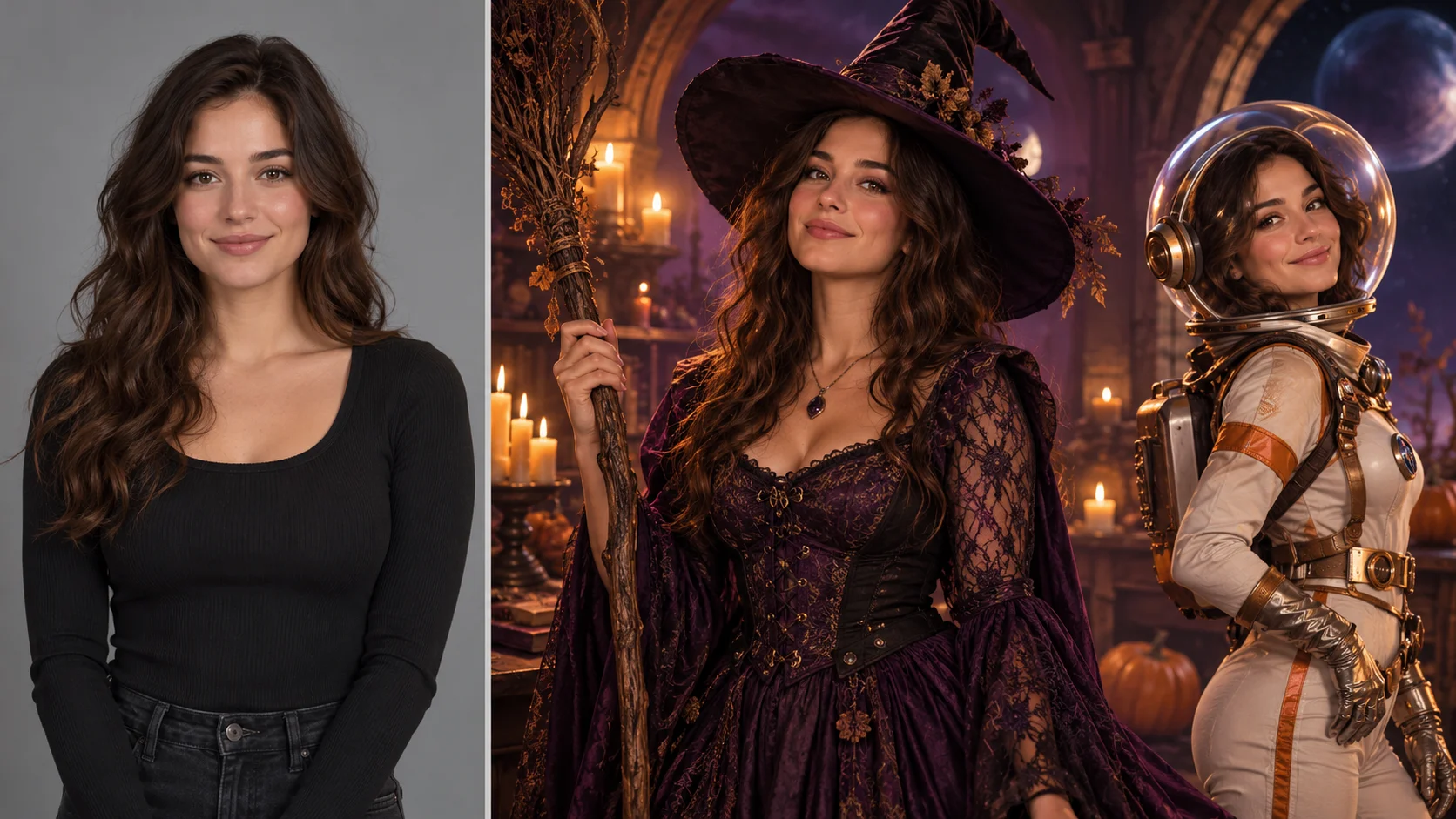
Create a still Halloween costume portrait by combining a person, an outfit description and a setting. Try it for comparing two costume directions, with your own setting and a clear visual intention.
Choose Text to Image or Image to Image, prepare the matching inputs and describe one useful direction. Check the settings and quote, then submit and review the result in History.
Check your current account credits and the selected model’s access conditions. When the available balance covers the quoted job, you can generate without buying more credits.
Upload one evenly lit adult portrait in Image to Image. Include the shoulders for a close costume portrait, or show more of the body when the cloak or skirt matters.
Read the live credit quote for the selected model and settings before submitting your costume portrait. Preparing inputs or editing a description does not start a generation.
Follow the submitted job’s estimate and progress. The model, settings and queue affect waiting; History keeps the completed image available for review and download.
Create a still Halloween costume portrait by combining a person, an outfit description and a setting. Choose a witch, vampire, retro explorer or an original character. On southpark character, approach it as an original character idea: a bold silhouette and an expressive finish. Give the character one readable visual hook that still works when the image is small.
Create an AI Halloween Costume portrait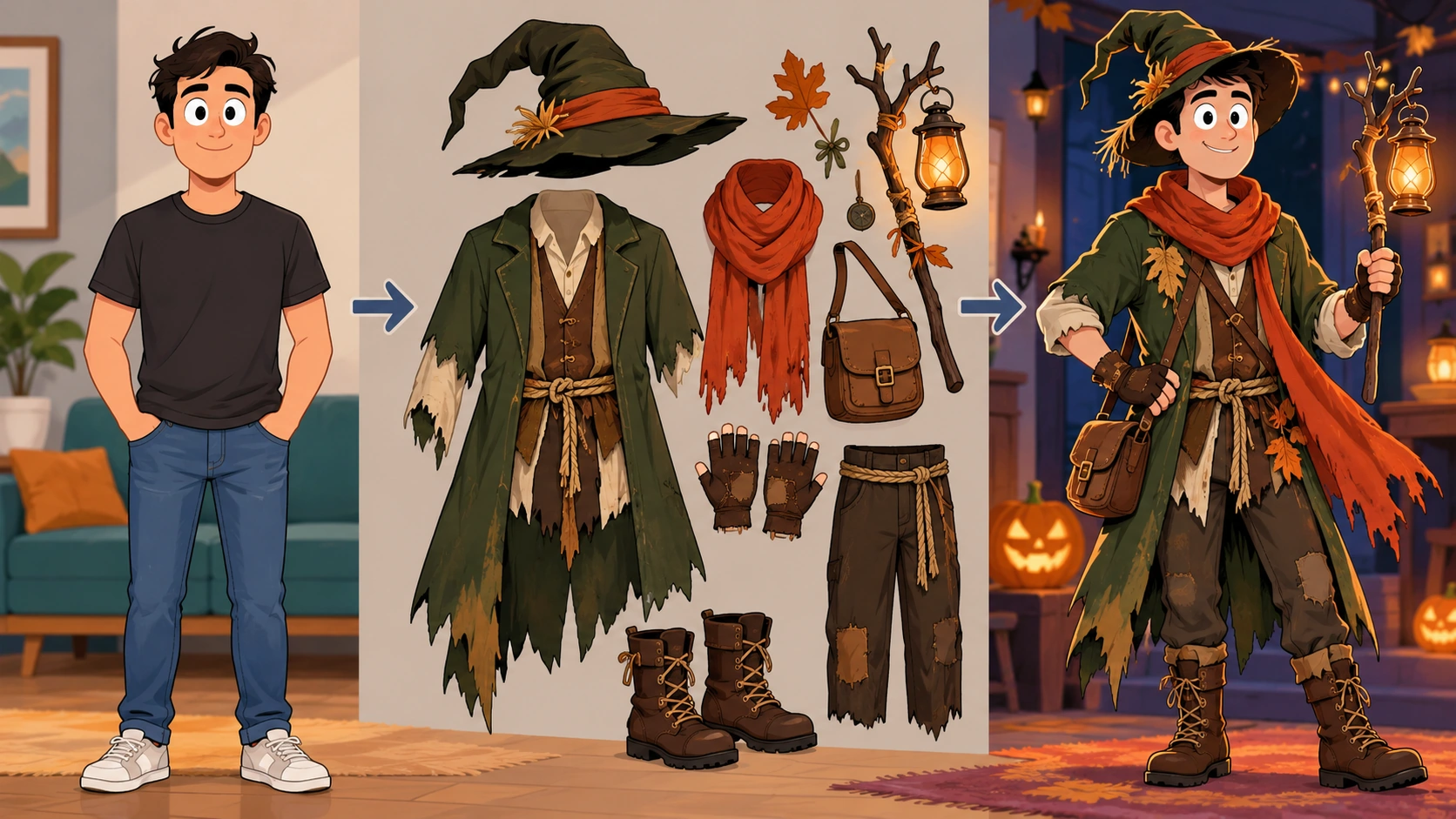
Prepare a clear subject and a focused direction before submitting a generation. Use a recent photo with the whole face in frame and no sunglasses or hats covering features.
Pick a direction such as witch, vampire, retro space explorer or an original character. Use the editable prompt to describe fabric, palette, props and mood. Adjust the available model controls for the look you want. Say plainly what should stay recognisable from the photo and what may change, because clothing and face can both vary.
The live credit quote appears before you commit, so read it first. Sign in to your account and start the generation job. When it finishes, open History and compare versions side by side. Keep the ones that hold the face and costume intent, and note what you changed between runs so later edits stay deliberate.
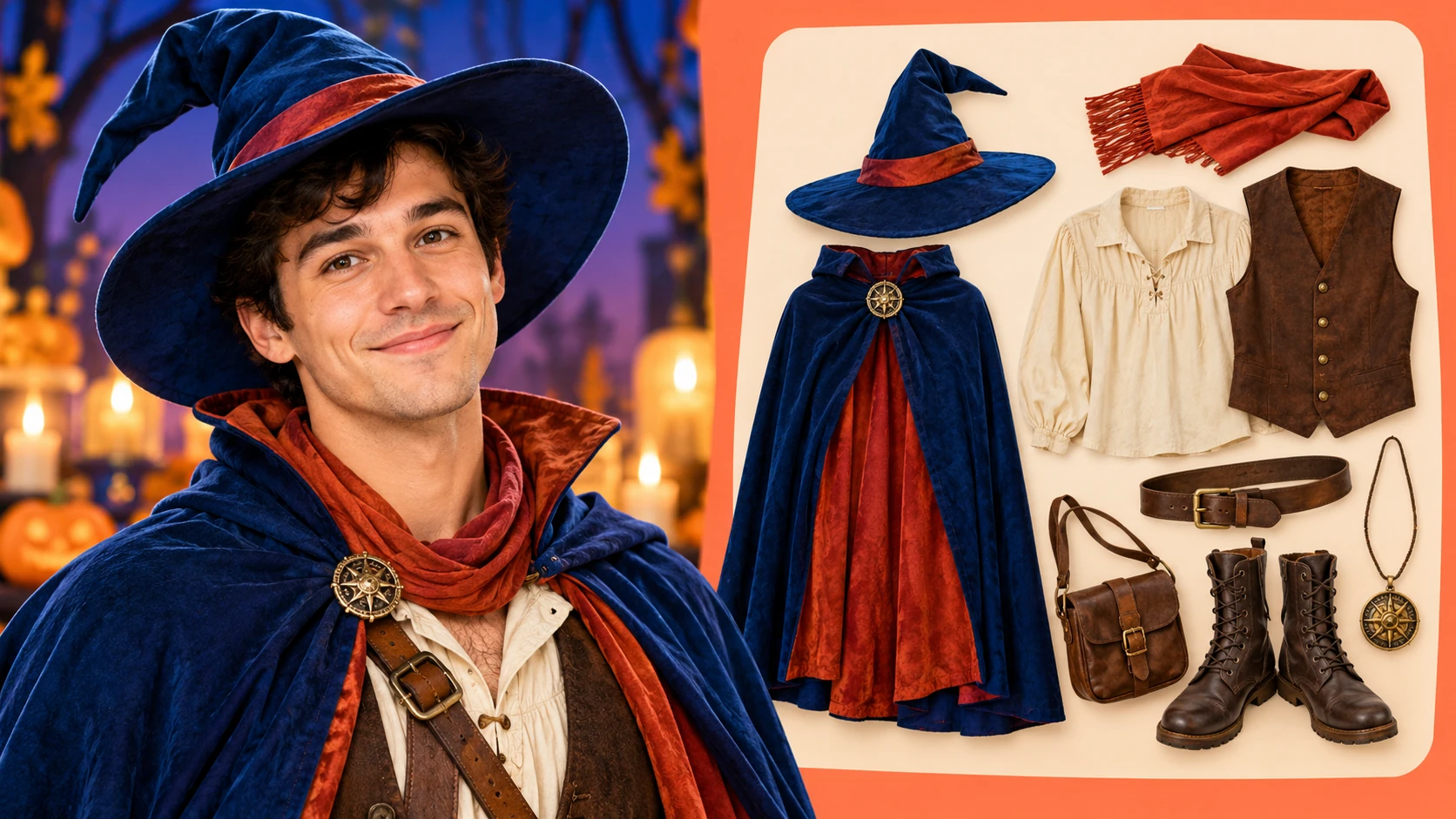
Upload a single adult photo. Face the camera in even light and keep the full head and shoulders visible. Avoid heavy filters, cropped chins and busy backgrounds. If clothing matters, note it in your reference notes so the costume direction does not fight the original outfit. One clear photo beats several inconsistent ones.
This page produces one still costume portrait, not a costume-transition video. That matters for comparison: you are judging a fixed frame, not motion. Check the face shape, eye placement and hairline against the source photo. Then judge the costume separately, since fabric and accessories can shift even when the face reads well.
The prompt stays editable, so you can change one variable at a time: colour, era, prop or lighting. Model controls let you steer the look without rewriting everything. Change one thing per run. That habit makes the History comparison meaningful, because you can tell which edit caused which difference instead of attributing luck to the prompt.
The displayed quote shows the credit cost before generation. After a job completes, History keeps the result and its details for later review. Use it as your controlled-comparison record: same input, different direction.
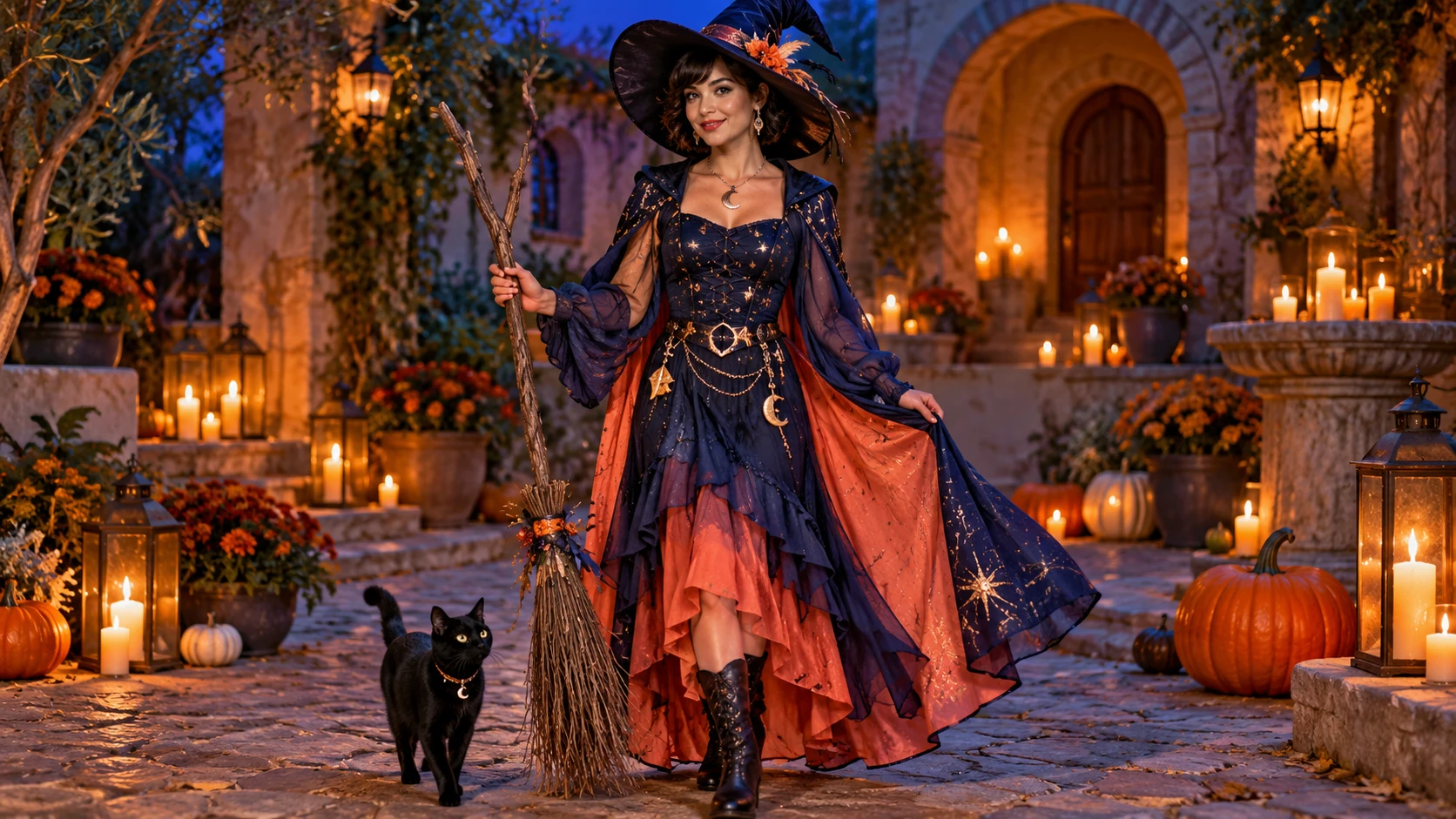
Use the same photo twice: once as a witch with a dark palette, once as a retro space explorer with a warmer one. Keep everything else equal, then compare in History to see which direction holds the face better.
An adult planning a group theme can test a single original character portrait first. Nail the palette and silhouette on one photo, then reuse that description for the rest of the group's inputs.
Generate a vampire in a period setting, then a modern one, and keep both. The pair works as a mood board for fabric and makeup decisions long before Halloween.
One still costume portrait from a single adult photo. It does not create a costume-transition video or an animation. You choose a witch, vampire, retro space explorer or original character direction, and the output is a fixed image you can review and compare.
A clear, evenly lit adult photo with the full head and shoulders visible. Avoid filters and heavy cropping. If clothing matters to the costume, describe it in the prompt, because clothing and face may vary from the original even with a clear reference.
Yes. The prompt is editable, so you can specify fabric, palette, props, era and mood. The available model controls adjust the look further. Change one element per run so comparisons in History stay useful rather than mixing several edits at once.
No. The face and clothing may vary from the uploaded reference. A clear photo improves the starting point but does not lock the result. Review each still against the source and keep the versions where the face and costume intent both hold up.
Choose Text to Image for a new costume portrait made entirely from your description; it uses no uploaded reference. Choose Image to Image when one photo should guide the person, subject or composition. Select the mode first so the visible inputs match your intention.
You can prepare the costume portrait before submitting. To generate, check your signed-in account’s current credits and the selected model’s access conditions. If the available balance covers the displayed quote, you can proceed without buying more; no fixed free quota is promised.
Your costume portrait has a live credit quote based on the model and settings you choose. Check it before submitting. Editing the description or reviewing an idea does not start a job; submitting another generation creates a separately quoted attempt.
Use the estimate and progress shown for the submitted costume portrait job. Model choice, settings and queue conditions affect waiting. Check History for the completed image, and keep the existing task in progress instead of resubmitting the same request while you wait.
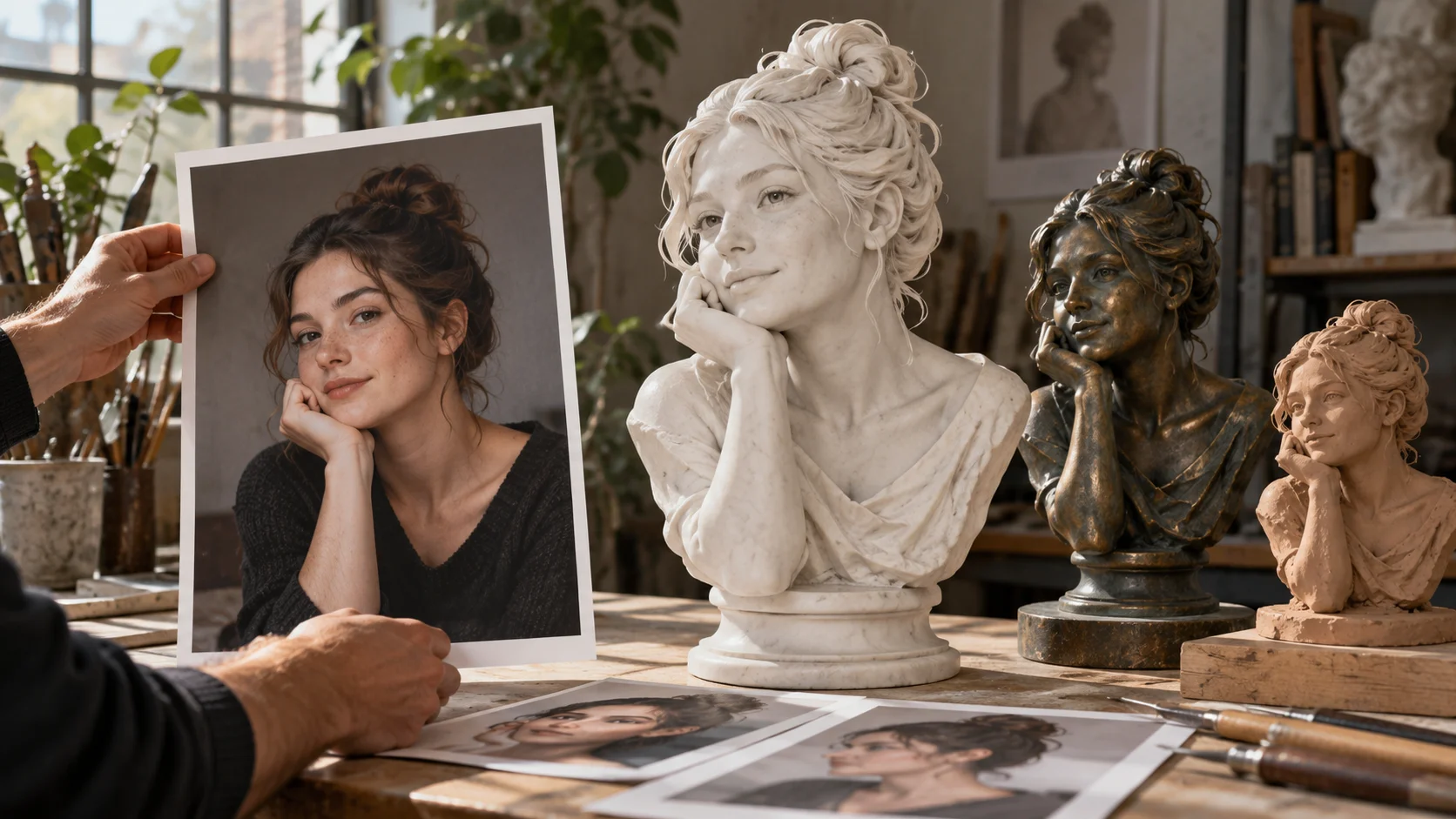
Explore AI Sculpture Filter for a different visual direction. This guide explains its input, practical steps and the details to review.
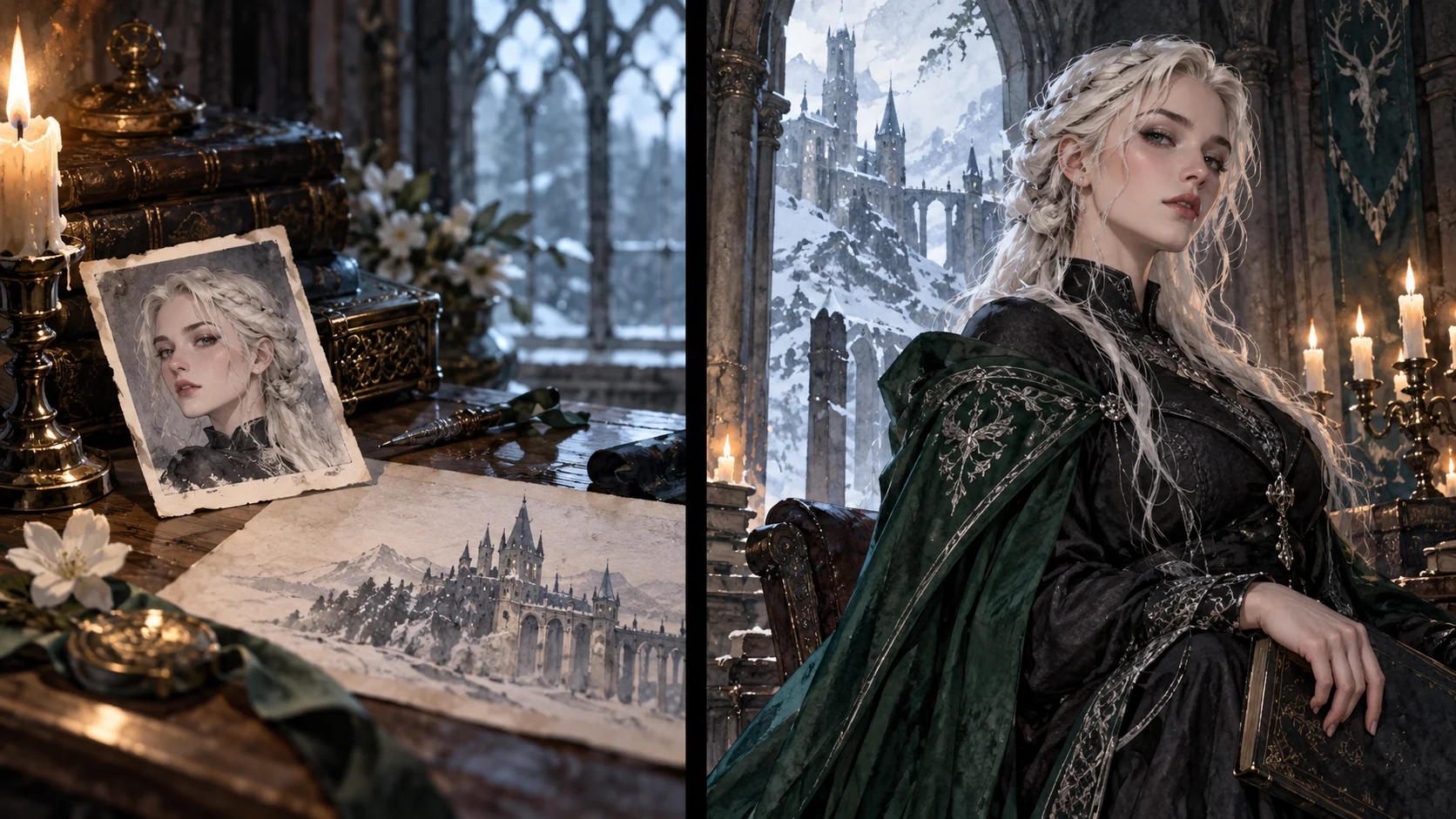
Explore Female Malfoy AI Generator for a different visual direction. This guide explains its input, practical steps and the details to review.
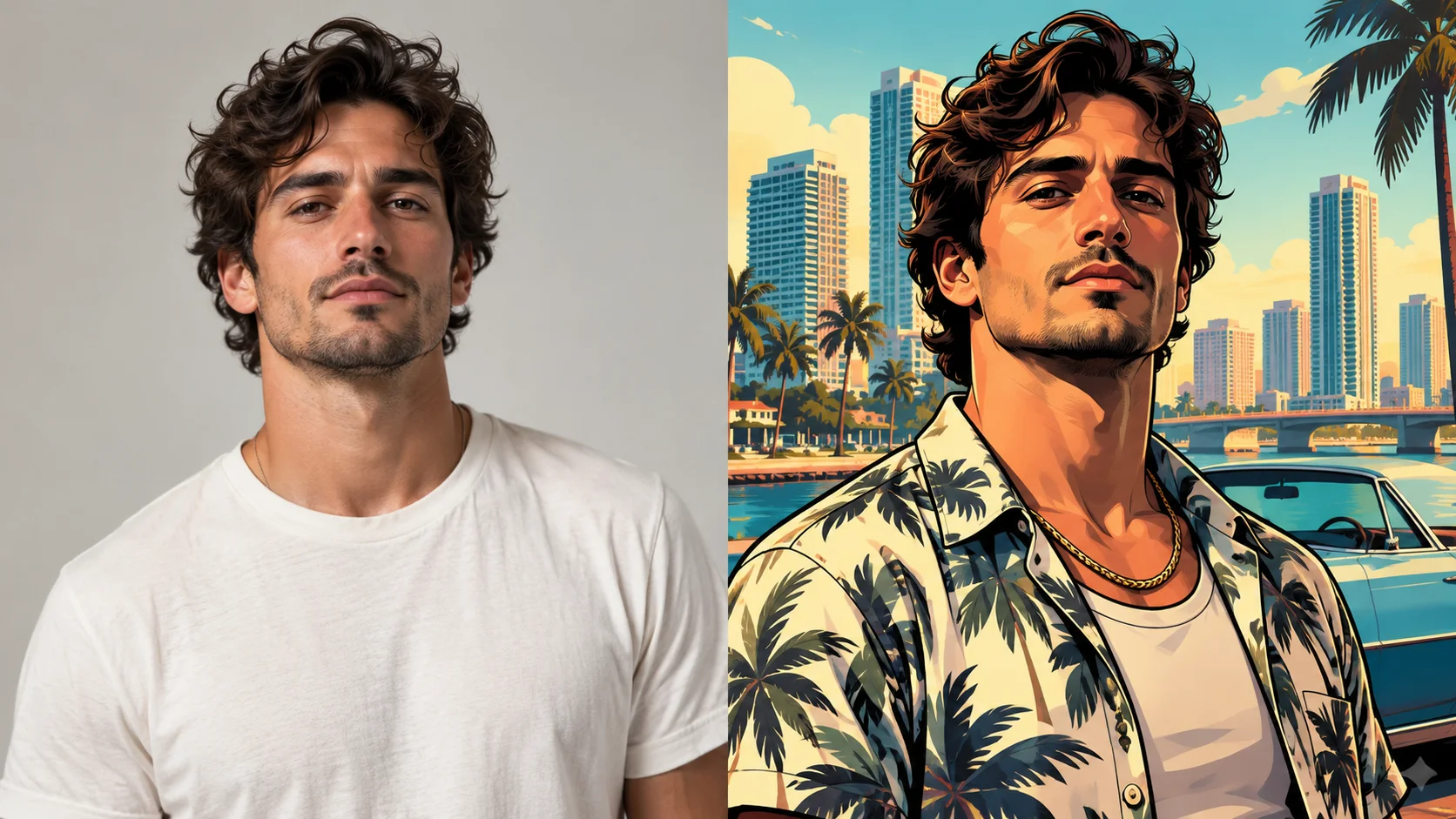
Explore GTA Style AI Photo Generator for a different visual direction. This guide explains its input, practical steps and the details to review.
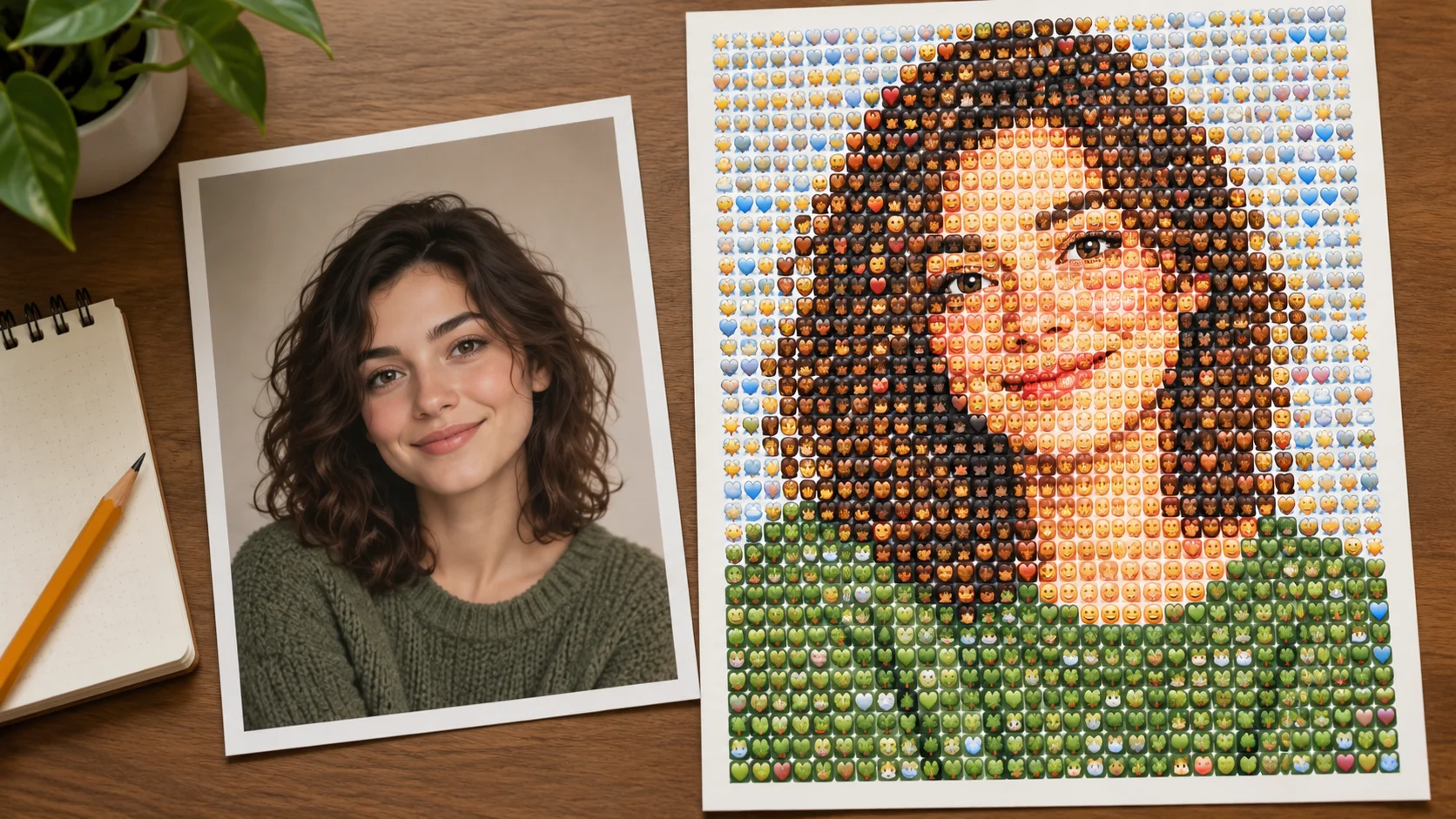
Explore Photo From Emoji Generator for a different visual direction. This guide explains its input, practical steps and the details to review.
Give the character one readable visual hook that still works when the image is small. Prepare the costume portrait, read the current quote and submit when the direction is clear.
Create an AI Halloween Costume portraitsouthparkcharacter.com · Updated